

Tiaris guide
Manage App Lists
Choose the apps computers get with reusable lists that Blueprints select.

An App List is a reusable set of applications. A Blueprint does not list apps itself: it selects one or more App Lists, and every computer that follows the Blueprint gets the apps of those lists. Edit a list once and every Blueprint that uses it receives the change with its next release.
Create an App List
Section titled “Create an App List”- Open Configuration > App Lists and select New App List.
- Give it a purpose-based name, such as “Office tools” or “Science lab.” Under Start from, keep An empty list, choose a starter list, or choose Copy a list to copy the apps of one of your lists (an app it holds twice is copied once). The starter lists are Office, Creative, Coding, Primary school and Maths and science. Choosing one shows what it holds and fills in its name while you haven’t typed one. Every app in a starter list is ready to install.
- Add apps (see Find apps). The Apps header counts the apps, for example “5 apps”; from 90 apps it names the limit too, as in “92 of 100 apps”.
- Select Save without releasing, or Save and release… to release it at once (see below). Nothing reaches a computer until a Blueprint that selects this list is released.
Find apps
Section titled “Find apps”The search above the list finds apps by their name or by what they do, such as “calculator”, “photos” or “typing”, from the first letter you type. Each result shows the app’s icon, its name and a short description in the language of the Console, its version number, and Add. Apps with the same name, such as the several called “Calculator”, are told apart by their description. Adding an app keeps the search and its results, so you can add several apps from one search; an app the list already holds says Added, also where Search all packages finds it again under another package of the same app.
The choices under the search field list one category’s apps, the well-known ones first: Learning, Office, Science, Drawing and photos, Sound and video, Coding, Internet, Tools and Games. Show more lists the rest. All lists the well-known apps. A new, empty list starts with them; a list that already has apps shows nothing until you search or choose a category.
Can’t find the app? Select Search all packages under the results, or where nothing was found, to search all the software Tiaris can install; it needs at least two letters and a word to search for. Much of it is not an app you open from the menu. Such a result says “May not appear as an app on the computer”, and so does its row in the list. Back to apps, or clearing the search, brings you back to the apps.
The list shows each app with its name and description in the language of the Console, and its version in Tiaris’s current software: a Blueprint that hasn’t taken the latest software update may still install an older one.
An app, in the list or in the search, says Prepared on your Nest or Needs approval only when it isn’t ready to install straight away. Needs approval means Tiaris doesn’t have the app ready: your Nest has to prepare it, and someone approves that once for your organization. Approve for organization does so and adds the app; if you may not approve, ask Tiaris support.
Every organization starts with the built-in Essentials list. Edit it freely; it cannot be deleted or archived.
Add websites
Section titled “Add websites”Under Websites, a list can also hold websites, such as the school’s learning platform. Each one becomes a tile in the computers’ app grid, beside the apps: its colour, the first letter of its name and a small globe. The tile opens the site in its own window of the managed browser (Chromium or Google Chrome), or in a new Firefox window on a Blueprint whose browser is Firefox.
- Select Add website.
- Type its Name and its Address. The address starts with
https://; an address with a user name, a password or something that looks like a key is refused. - Choose a Colour and select Add. The pencil changes a website, the cross removes it.
- Save the list as usual. A list holds at most 50 websites.
A Blueprint that selects the list can pin its website tiles to the dock, like apps (see Choose dock apps). Classroom students never see website tiles, in a lesson or outside one: their grid and dock hold only Classroom apps. To give them websites, use the bookmarks and start pages of the Policy’s Browser block (see Manage Policies). The exam kiosk never shows tiles either.
Use a list in a Blueprint
Section titled “Use a list in a Blueprint”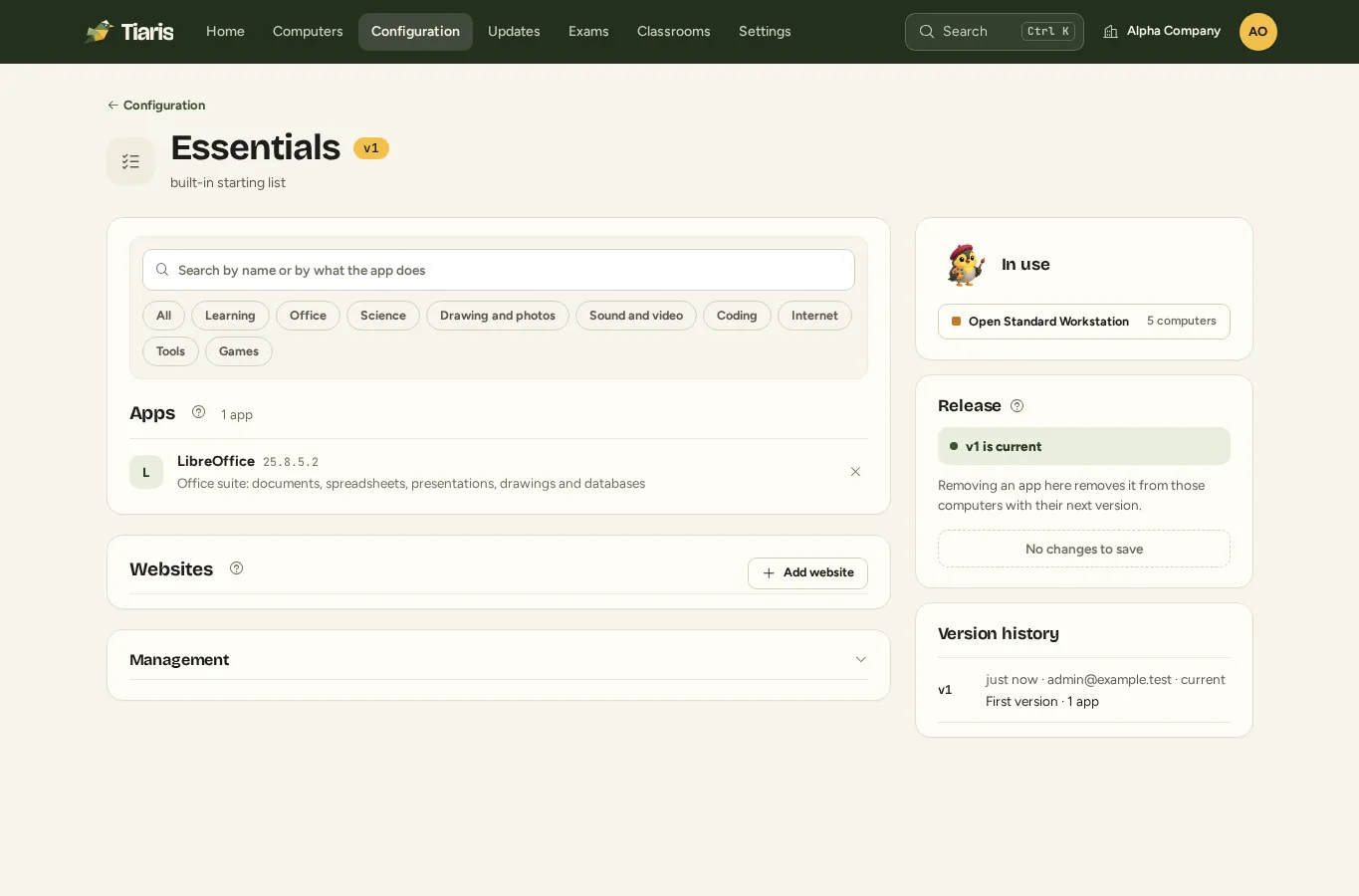
- Open the Blueprint and, under Apps, tick the lists it should install. Edit beside a list opens it in a side panel, so you can change its apps without leaving the Blueprint; Open full page at the top of the panel opens the list’s own page. Someone who may not edit the list gets Open instead.
- Select Save without releasing or Save and release… as usual. Each Blueprint version records the exact list versions it was built from.
- Which of the desktop’s own bundled apps stay installed is chosen on the Blueprint itself — see Desktop apps.
Save and release a list
Section titled “Save and release a list”Save without releasing (on the Release card or in the bar at the bottom of the editor) creates a new version of the list and prepares a new version of every released Blueprint that uses the list. An archived Blueprint is left alone. Computers do not change. The list is saved even when a Blueprint cannot follow: Tiaris names that Blueprint and says why. To release a prepared version later, select Open … to release for that Blueprint and use Release vN there. Apps you add or remove while a save is under way stay, as unsaved changes on top of the saved version.
Save and release… opens one confirmation that names every affected Blueprint and the number of computers, for example “Release Office tools v4 to 2 Blueprints · 14 computers?”. Sending to everyone at once is the default; Try it on one computer first is offered only when exactly one Blueprint is affected. Confirming saves the list and releases each Blueprint’s new version, exactly as a Policy change does: their computers follow by themselves, and a Blueprint that could not take the change is named with its reason. The editor notice lists each Blueprint’s outcome. The In use card names every Blueprint that follows the list. With nothing to save or release, the Release card says No changes to save instead of showing buttons.
Version history beside the editor shows the newest five versions of the list, each with who saved it and which apps and websites it added and removed; Show all versions shows the rest.
A list can be deleted only while no Blueprint uses it and no Blueprint version was built from it. Otherwise select Archive… under Management: the list is hidden from the lists and Blueprints can’t choose it, while the versions built from it stay. A list that a Blueprint still uses (its release, prepared version or saved changes) can’t be archived; Tiaris names those Blueprints. Archived under the App Lists on Configuration brings it back.