

Tiaris guide
View and manage computers
Find computers, understand their current state, and perform everyday management tasks.

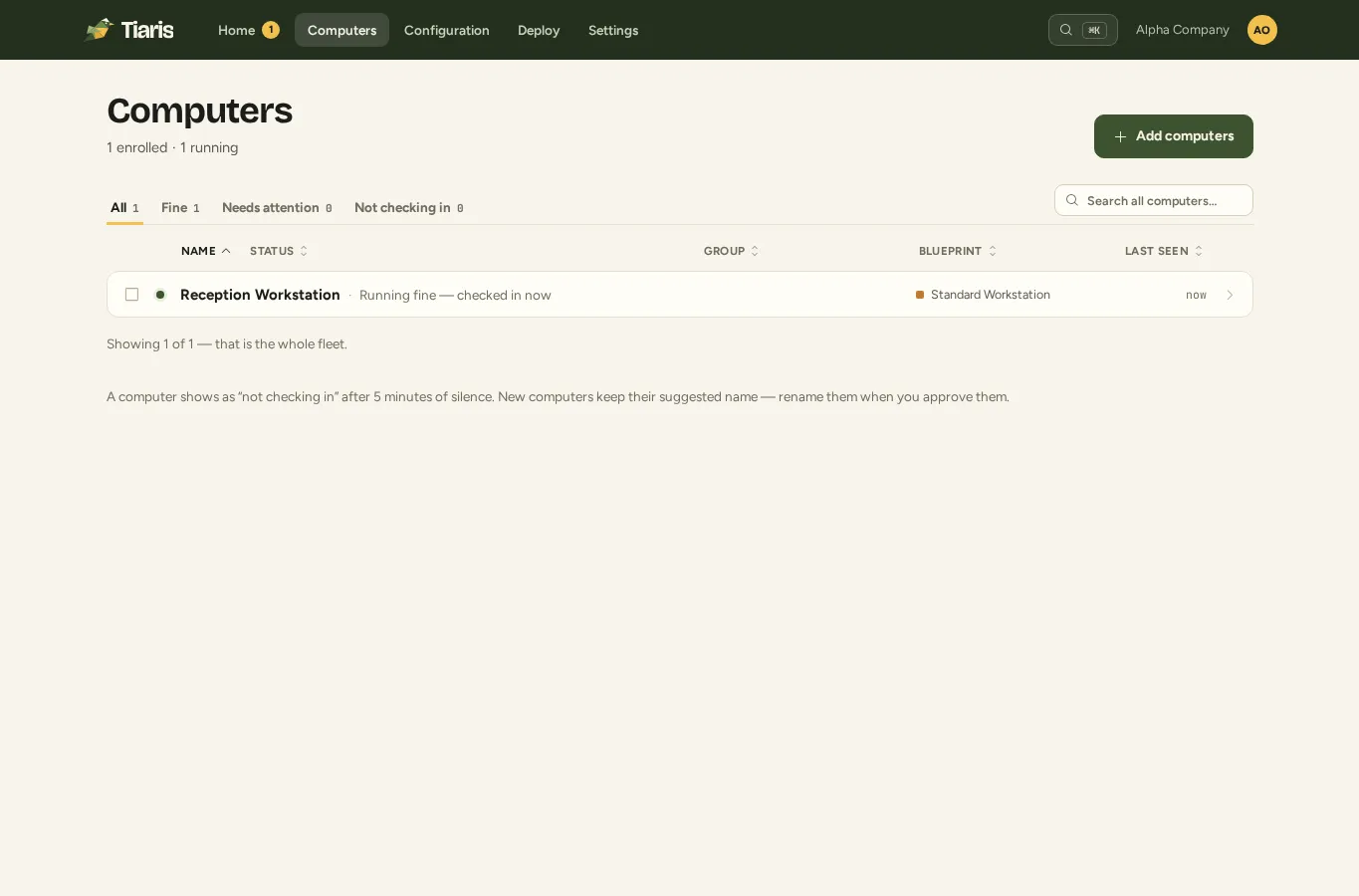
Open Computers in the top bar. The inventory is a table: select a computer’s row to open its detail panel. Always check the selected organization before making a change.
Find the right computer
Section titled “Find the right computer”Search by the identifying information you have, then use the status filters to narrow the list. Fine, Needs attention, and Not checking in help separate healthy computers, reported problems, and missing contact.
Read Last seen alongside the status. Recent contact establishes connectivity; it does not prove that every configuration check passed. Confirm the name, hostname, hardware, and Blueprint when two machines have similar names.
Use a clear display name and an appropriate group/room label. A label helps organize inventory; it does not change the computer’s identity or deployment scope by itself.
Read the detail panel
Section titled “Read the detail panel”The panel shows the computer’s Blueprint, operating-system and hardware information, active work, configuration evidence, and diagnostics. An assigned Blueprint describes the requested state; reported configuration establishes what the computer has actually applied.
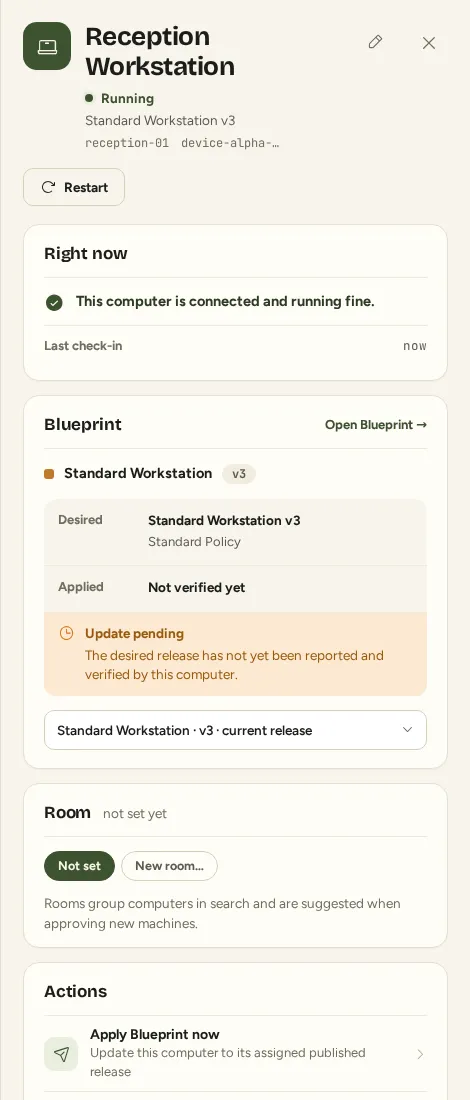
If Tiaris is preparing an operation, follow its current instruction. Do not restart yet means prerequisites are still being prepared. A queued operation and a completed operation are different states, even when the computer remains online.
Everyday actions
Section titled “Everyday actions”| Task | What to do | What to verify |
|---|---|---|
| Rename | Use the computer’s name control and save a recognizable display name. | The inventory identifies the intended machine. |
| Organize | Change its group/room label. | The label is correct; existing configuration assignment is still what you intended. |
| Change configuration | Select an exact released Blueprint/version and review the application action. | The computer reports the intended revision after application. |
| Refresh information | Choose Refresh info when inventory needs updating. | The new hardware/OS report arrives; an offline machine waits for contact. |
| Check configuration | Choose Verify Blueprint. | Read the returned system checks and desktop observations, not only command completion. |
| Restart | Choose Restart and review the confirmation. | Any active operation permits the restart, and the machine reports again afterward. |
| Investigate | Open Diagnostics, select the relevant command, and review evidence or download a support package. | Distinguish the original failure from recovery and unavailable evidence. |
Available actions depend on your role, the computer’s capabilities, and active work. A disabled action’s explanation tells you which prerequisite is missing.
Work with several computers
Section titled “Work with several computers”Use inventory checkboxes to select the intended computers and review the selection before a bulk action. Search and filters help build that selection; confirm its count and identities before changing configuration or requesting restarts.
For a Blueprint change across its followers, prefer Deploy, where you can review exact scope, try a test computer, and approve a later wave. Offline targets keep their existing system and wait for a safe recheck.
Reinstall or stop managing
Section titled “Reinstall or stop managing”These have different consequences. Reinstall resets the approved disk and installs the chosen released configuration. Decommission revokes management and removes the inventory entry; it does not wipe the disk. Read Reinstall or decommission before either action.
Verify after a change
Section titled “Verify after a change”Let active work finish, check recent contact and the expected Blueprint/version, then read Diagnostics and checks. If a desktop observation says pending sign-in, sign out and back in before judging that setting. Unobservable means the session could not be checked; it is separate from system configuration drift.