

Tiaris guide
Navigate Tiaris
Understand the main navigation and choose the right place for a task.

The Home page shows the organization’s current computer health, work that needs attention, and shortcuts into common tasks.
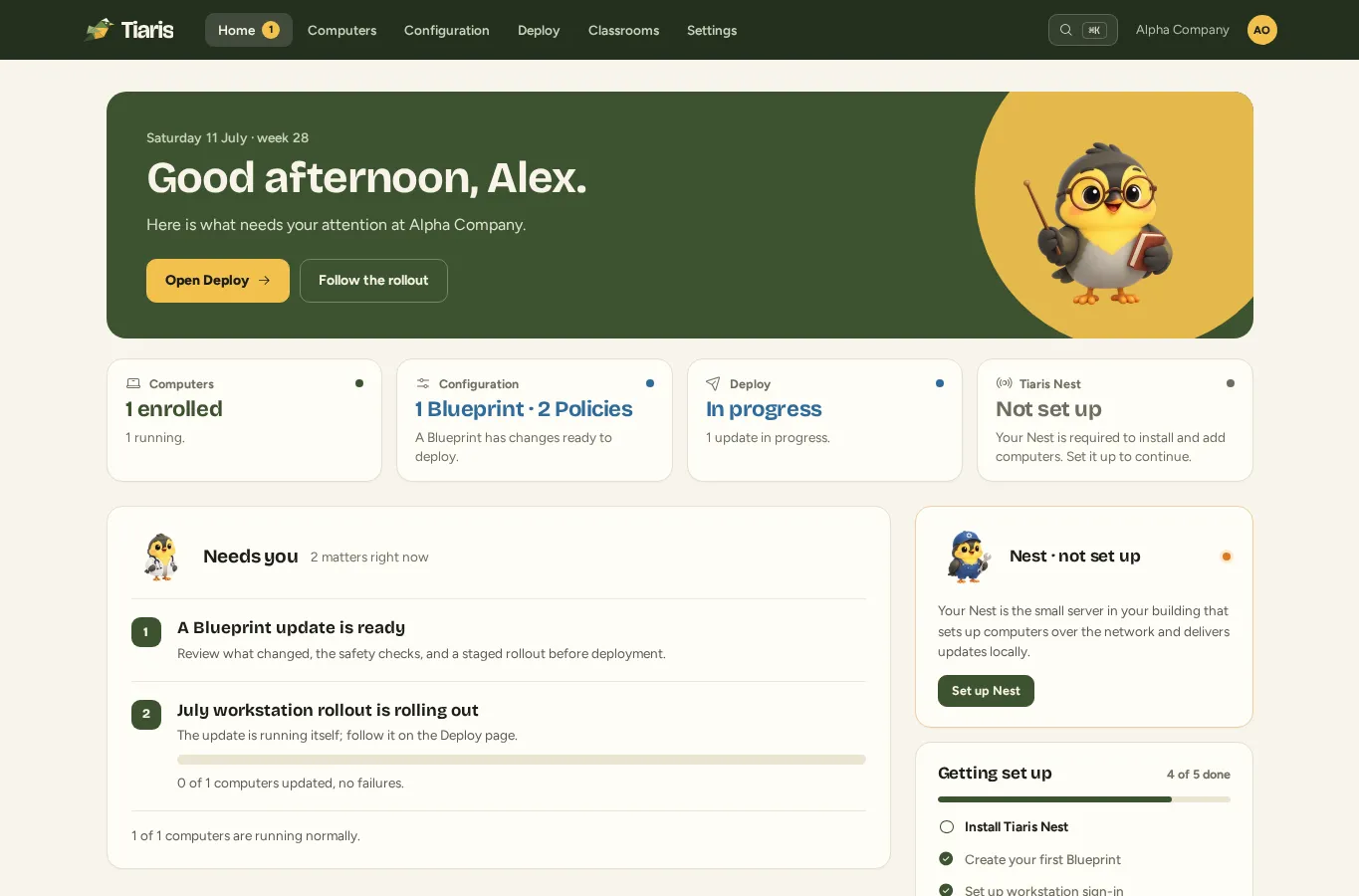
Main areas
Section titled “Main areas”The top bar has five destinations. Only Home shows a number: how many approvals and other matters are waiting for you there.
- Home shows what needs your attention, recent activity, and the Nest card. Select Open Nest (or Set up Nest before one is installed) to manage the optional local install and cache service. The card also shows what Nest is working on right now.
- Computers shows enrolled devices, their current status, Blueprint, and recent contact. Open Add computers here to prepare installation media or approve a pending computer.
- Configuration contains three focused collections:
- Blueprints defines applications, Desktop Experience, appearance, kiosk behavior, and assignment for a group of computers.
- App Lists defines reusable application selections that Blueprints use.
- Policies defines sign-in, security, networking, access, update, printing, and monitoring rules for the organization.
- Deploy releases a prepared Blueprint revision to computers.
- Settings contains organization details, sign-in sources, people, and downloads.
Open the account menu for Your account, Settings, appearance controls, the welcome tour, and sign out. Role-specific destinations are grouped there too: Organizations for reseller and platform accounts, the Operator workspace for operators, and the Platform Console for platform administrators. If you can access more than one organization, use the organization selector in the top bar for a quick switch. Search (Ctrl K or Cmd K) reaches any page, computer, or Blueprint directly.
The Help & documentation link always opens the guide for the page you are viewing in a new tab.
Open Activity from Home’s recent activity to investigate recorded actions. Language, account security, and Light/Dark/Automatic appearance are under Your account. See Language and appearance.
If this is your first visit, follow Set up your first computer. For the relationship between configuration and approval, read How configuration fits together.