

Tiaris guide
Deployment and desktop problems
Follow deployment blockers and distinguish configuration drift from a desktop waiting for sign-in.

Open Deploy for the current plan and Computers for the affected machine. Read the exact stage and reason before selecting a recovery action.
Nothing starts after saving
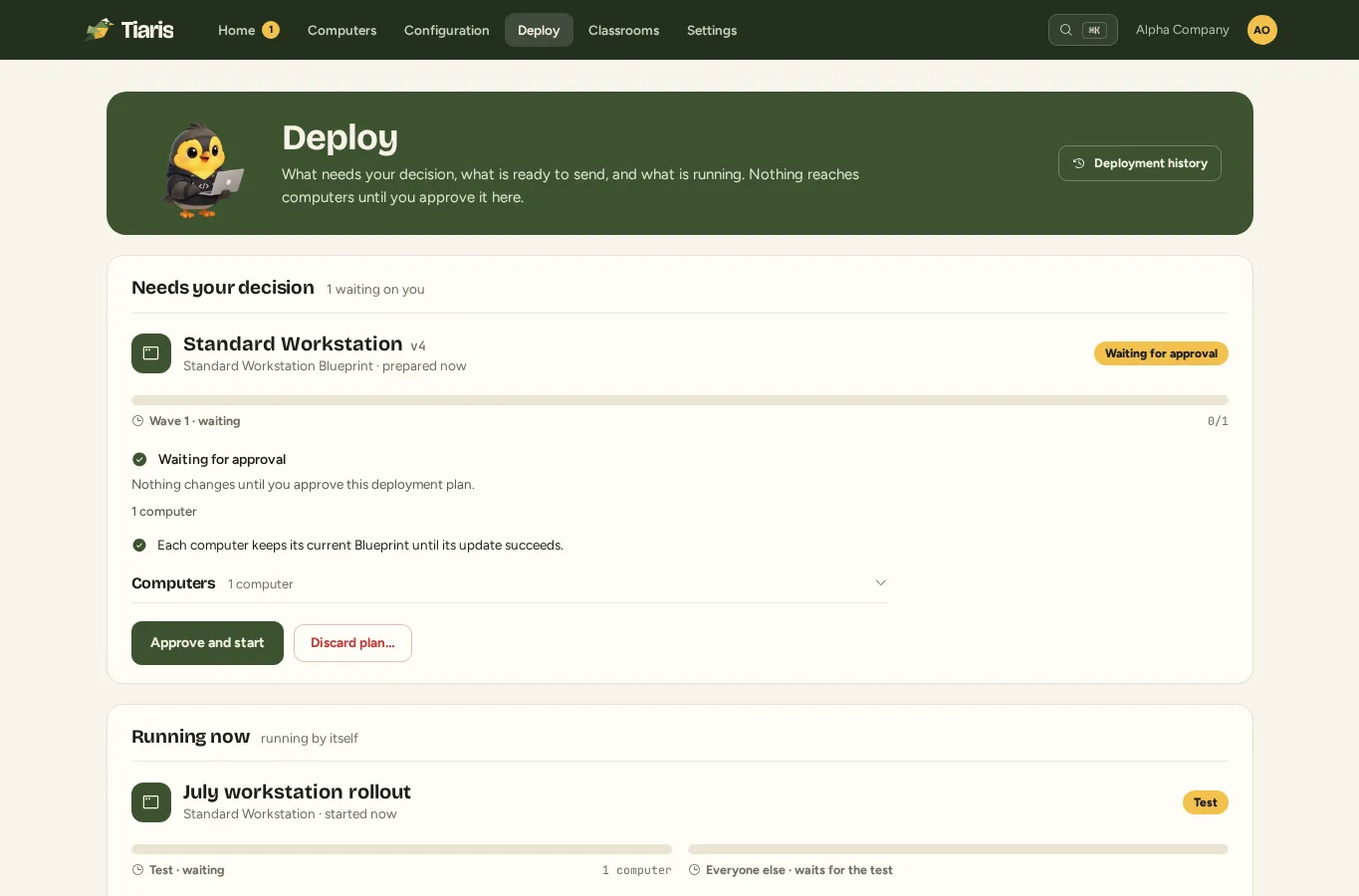
Section titled “Nothing starts after saving”Check the configuration lifecycle. A Blueprint draft must be prepared and released. Deploy… creates a plan; Approve and start begins approved work. Policy/App List Save & Deploy prepares plans, which also require approval.
Confirm that the intended computers follow the released Blueprint and are in the plan’s reviewed target set. A Default Blueprint does not silently reassign existing machines.
Approval is blocked
Section titled “Approval is blocked”Read the prerequisites in the plan: Nest health/capabilities, workstation runtime, device identity, setup/delivery files, and any manual action.
One-time bootstrap required is a supported protected transition. Reinstall required means the current runtime cannot perform that transition safely. Follow Versions and compatibility and Reinstallation rather than bypassing the prerequisite.
A target is offline
Section titled “A target is offline”The target keeps its previous configuration and receives no incompatible runtime or Blueprint command. Let it reconnect, then choose Check again and resume when available. Completed work on other targets is not repeated by that safe recheck.
A stage failed
Section titled “A stage failed”Later dependent stages do not start. Open the failed component/target and inspect its diagnostic evidence.
- Retry failed stage repeats the existing stage from its safe boundary after the cause is corrected.
- Check again and resume refreshes a paused or repairable blocker.
- Stop release plan prevents later stages from starting while settling already-dispatched work safely.
- Roll back restores the previous Blueprint on computers that this release actually changed.
Use the action that matches the visible state. Do not submit an unrelated deployment or reinstall to hide an unresolved failure.
The command completed, but a check reports drift
Section titled “The command completed, but a check reports drift”Command completion describes execution. Per-setting checks establish the configuration result. Open Verify Blueprint evidence and read the expected/observed value and reason for each drifted check.
Check the assigned and reported exact Blueprint versions. If activation failed, retain the original error and any rollback error separately. Use Diagnostics to collect that evidence.
The system passes, but the desktop looks old
Section titled “The system passes, but the desktop looks old”Many desktop settings apply at the next sign-in. Check the session observation:
| Observation | Next step |
|---|---|
| Showing the managed value | Confirm the intended setting and desktop are the ones being observed. |
| Pending sign-in | Sign out and back in on the workstation, then verify the visible result. |
| Unobservable | Record the helper’s reason. Recheck in a normal supported session or ask support to investigate observation. |
An unobservable session is not proof of drift. Wallpaper and other appearance updates can be pending in an already-running desktop even while the managed system layer is correct. Also check Appearance enforcement: Defaults only permits user customization.
A setting’s control is missing
Section titled “A setting’s control is missing”Confirm the owning editor, selected Desktop Experience, and current permissions. The routine dialog shows supported controls; advanced imported overrides may require Operator review. A new helper-dependent feature also needs the compatible signed runtime installed on the computer.
For a persistent issue, send support the exact version, setting/check reason, session observation, time, and relevant package.