

Tiaris guide
Desktop, appearance, and kiosks
Choose a Desktop Experience, manage its apps and appearance, and configure a kiosk safely.

Desktop choices belong to the Blueprint. Sign-in and security restrictions belong to its Policy. Before changing either, check the Blueprint’s assigned computers and try the resulting version on one representative workstation.
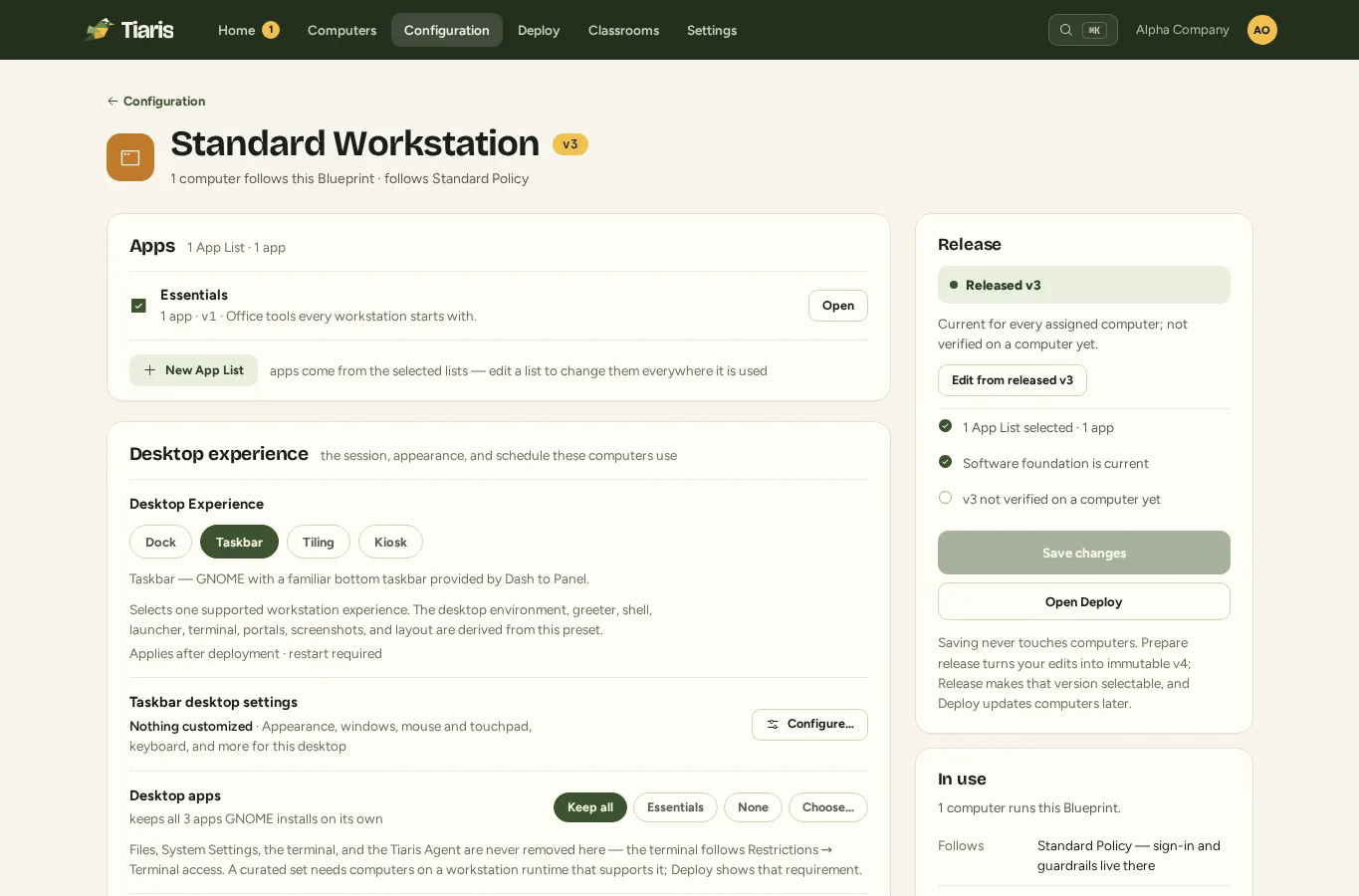
KDE Plasma is no longer supported. If an old Blueprint release still installs Plasma, clear its old Plasma settings from the draft, choose a supported Desktop Experience, then prepare and release a new version before installing or deploying it. Installed computers also need the compatible signed workstation runtime.
Choose a Desktop Experience
Section titled “Choose a Desktop Experience”Open Configuration, select the Blueprint, and choose the experience that fits the computer’s purpose. Taskbar uses GNOME with Dash to Panel; Dock and the other GNOME experiences also use GNOME; Tiling uses Hyprland. Kiosk and Server / none have more specialized behavior.
Choose Configure… beside desktop settings to open the controls supported by that experience. Taskbar settings can cover windows, workspaces, and the session; GNOME settings include appearance, input, privacy, and accessibility; Tiling has its own layout, decoration, animation, and input choices. The dialog shows each control’s default.
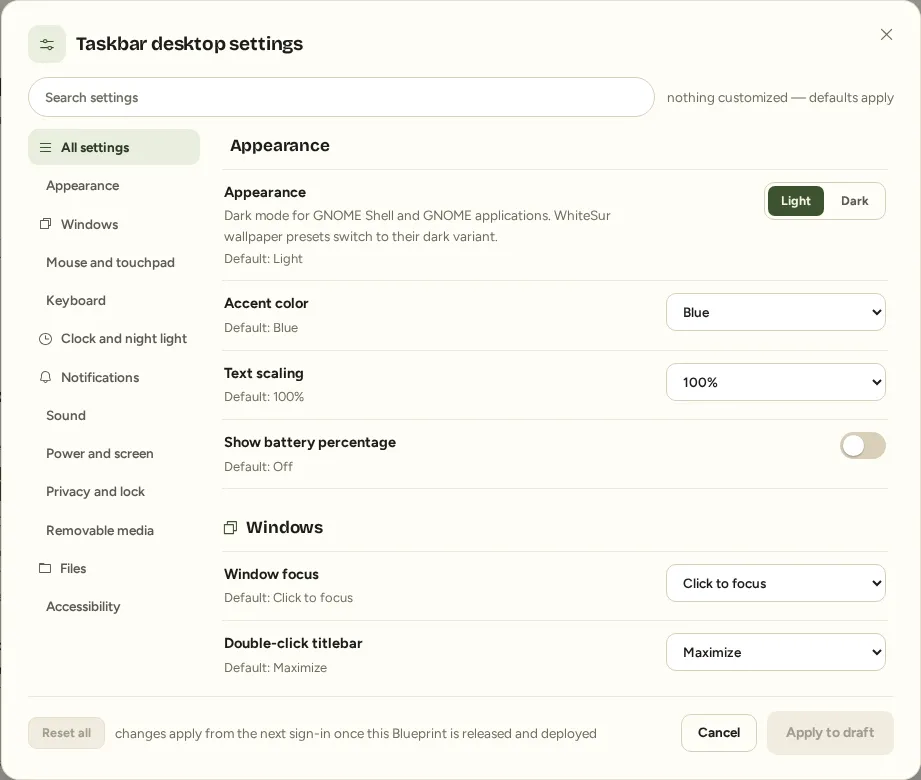
Apply to draft keeps the changes in your Blueprint authoring state. Release and deploy a version before expecting them on a workstation. Choices for another desktop are retained if you switch experiences and later switch back.
Managed Classroom session preview
Section titled “Managed Classroom session preview”The development candidate uses one managed GNOME Wayland Classroom session for classified students. Taskbar and Dock choose its presentation; the administrator baseline belongs to Policy. Operator and unclassified recovery access remains. This requires separately qualified and released runtime 1.0.98, signed Chromium 0.2.2 and an applied signed configuration. Existing installed runtimes keep their original behavior until updated. See Prepare classrooms.
Set appearance enforcement
Section titled “Set appearance enforcement”Enforced keeps the managed wallpaper, theme, icons, cursor, and fonts fixed. Defaults only supplies a starting appearance and permits a person to customize it. Security rules remain enforced in both modes.
A value marked From computer came from a reference-computer import. Customized identifies a Console choice. Resetting a Console choice restores the imported value, or the managed default when there is no imported value. Reset all affects Console-authored controls in that dialog.
Use the organization’s wallpaper selection or upload path in the editor. A changed image is delivered with its own content identity, so reusing the same human-facing name does not require manually clearing desktop caches.
Choose desktop apps
Section titled “Choose desktop apps”A desktop adds some applications of its own. Use Desktop apps to Keep all, keep Essentials, keep None, or Choose a particular set. This controls the desktop’s bundled applications; App Lists supply applications you explicitly select.
Core tools remain protected. Whether a workstation exposes the terminal is decided by Terminal access in the Policy. A curated desktop-app choice can require a newer runtime; the deployment plan explains that prerequisite.
Set up a kiosk
Section titled “Set up a kiosk”- Choose Kiosk for the intended Blueprint.
- Set its Kiosk start page to an absolute HTTP or HTTPS URL that the computer can reach. Test the destination on the target network.
- Review its Policy’s sign-in, browser-extension, user-install, camera/microphone, and security choices. A kiosk desktop does not replace those rules.
- Prepare and release the Blueprint, then approve deployment to a test computer.
- On the workstation, verify the start page, permitted interaction, sign-in behavior, and administrator recovery procedure before a wider rollout.
Do not use the kiosk URL as storage for credentials or access tokens. Your organization’s operator should retain an appropriate recovery path for a computer that cannot reach its start page.
When changes become visible
Section titled “When changes become visible”The settings reference names the activation boundary for each setting. Many appearance and desktop controls take effect on the next sign-in after the updated system is active. The session helper may also update a running desktop when it can observe and reach that session.
Read system checks separately from session observations: showing the managed value, pending sign-in, and unobservable. The last state means the helper could not observe the desktop; it does not establish configuration drift. Follow deployment and desktop troubleshooting if the visible result differs.