

Tiaris guide
Wi-Fi and certificates
Stage secure wireless profiles, validate certificates, and deploy the reviewed Policy configuration.

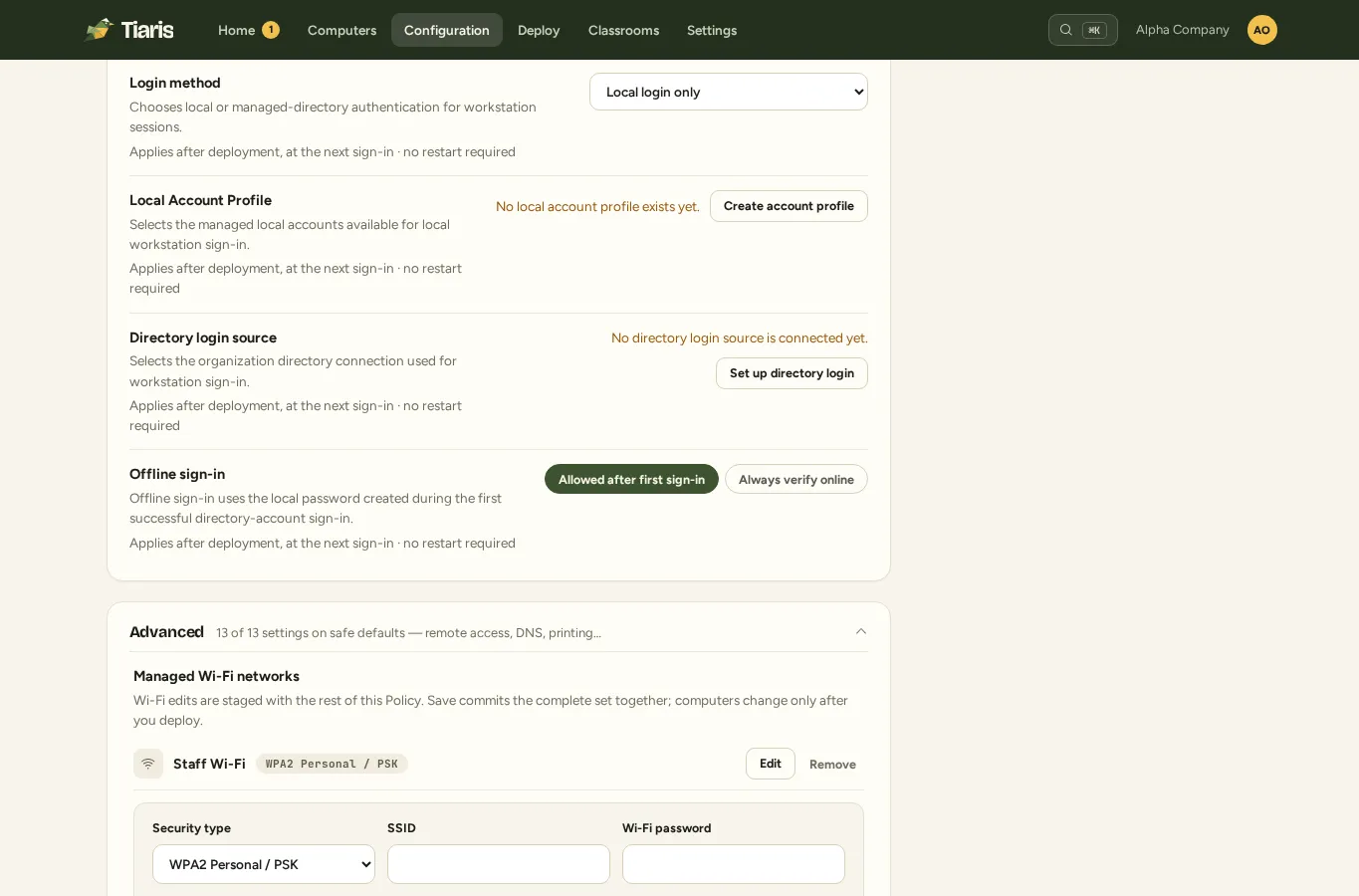
Open Configuration, select the Policy, then Advanced > Managed Wi-Fi networks. Managed Wi-Fi is a staged part of that Policy. Adding or removing a network in the editor does not immediately change computers.
Choose a security method
Section titled “Choose a security method”| Method | What you need |
|---|---|
| Open | The intended SSID and your organization’s approval for an unencrypted wireless network. |
| WPA-PSK, SAE, or mixed WPA-PSK/SAE | The SSID and appropriate shared credential. |
| WPA/WPA3 Enterprise | The security/EAP method, identity, trusted RADIUS CA, and exact server DNS name or allowed DNS suffix. |
Enterprise profiles support PEAP/MSCHAPv2, EAP-TTLS with supported password methods, and EAP-TLS certificates. The editor validates required combinations. WPA3 requires protected management frames; do not assume that choosing WPA3 Enterprise enables Suite-B-192.
Add a network
Section titled “Add a network”- Choose the add-network action and enter the exact SSID.
- Select the security method and enter the fields it requires.
- For Enterprise, choose the EAP method and identity and set the RADIUS server-name constraint.
- Import or select the trusted CA and any client-certificate profile required by the method.
- Save the network into the Policy draft. Review any other staged changes.
- Save the Policy, or Save & Deploy to also prepare approval plans. Review and approve the affected Blueprint plans on Deploy.
Existing write-only credentials are retained when an unchanged field is omitted. Supply a replacement intentionally when rotating credentials. Changing the credential source removes the old source from the new authored state.
Trust the intended RADIUS server
Section titled “Trust the intended RADIUS server”The trusted CA and server-name constraint are mandatory. Tiaris does not offer a “skip certificate validation” option. Obtain the CA and expected DNS name from the network/PKI administrator. A name mismatch or untrusted CA should be investigated rather than bypassed.
For EAP-TLS, import PEM certificate/key material or a password-protected PFX/P12 bundle through the certificate controls. Private keys and passwords are write-only; the Console does not reveal them on a later read.
Shared imported certificates or per-device certificates
Section titled “Shared imported certificates or per-device certificates”An imported client profile is reusable and its credentials are shared by computers using that profile. Where your deployed runtime supports SCEP, choose a SCEP profile for a key generated locally on each computer.
Ask the PKI administrator for the enrollment URL, pinned CA, subject template, any challenge, and renewal policy. This implementation uses device RSA certificates; it does not enroll per-user certificates. Supported SCEP transport and PKI requirements must be confirmed with the operator before deployment.
Certificate profiles are immutable. To rotate imported material or change profile settings, create a replacement profile, select it in the Policy, then save and deploy the reviewed new configuration.
Preserve a working connection
Section titled “Preserve a working connection”Enterprise Wi-Fi requires a compatible signed workstation runtime. Review the deployment prerequisites before applying an Enterprise profile. Keep a working bootstrap connection to Tiaris and, when using SCEP, the PKI while certificates are provisioned.
On one test computer, confirm successful connection to the intended network, correct server validation, and continued connectivity after restart. Test any desktop password prompt your chosen credential source requires. For SCEP, ask the operator to confirm unique device certificates and renewal before wider deployment.
If it does not connect
Section titled “If it does not connect”Check the exact SSID, EAP method, identity, CA, server-name constraint, and certificate validity with the network administrator. Compare the deployed Blueprint version with the version that includes the Wi-Fi change.
Collect the visible network error and diagnostic evidence using a working connection. Keep private keys and network passwords out of messages and screenshots sent to support.