

Tiaris guide
Microsoft Entra ID sign-in
Connect Microsoft Entra ID so people sign in to managed computers with their Microsoft work or school account.

Tiaris connects to Microsoft Entra ID with Microsoft Entra ID: the sign-in screen shows a web address and a one-time code, and people finish signing in on a phone or another computer. See Set up school accounts for how a Policy uses it.
It needs packages that your Nest prepares, so the sign-in method must be approved for the organization. An Admin approves it in the Policy with Approve this sign-in method. See When school accounts need approval first.
Microsoft Entra ID with a password is no longer offered for a new connection. A connection made earlier keeps working and can still be edited.
Microsoft Entra ID with a sign-in code
Section titled “Microsoft Entra ID with a sign-in code”Create the Microsoft application
Section titled “Create the Microsoft application”- Sign in to the Microsoft Entra admin center and open Entra ID > App registrations.
- Select New registration.
- Enter a recognizable name, such as
Tiaris computer sign-in. - Under Supported account types, choose the single-tenant option for your organization. Leave Redirect URI empty and select Register.
- On the application Overview, copy the Application (client) ID and Directory (tenant) ID.
- Open Authentication. Under Advanced settings, set Allow public client flows to Yes, then select Save.
Microsoft provides more detail in Register an application and Enable public client flow.
Connect it to Tiaris
Section titled “Connect it to Tiaris”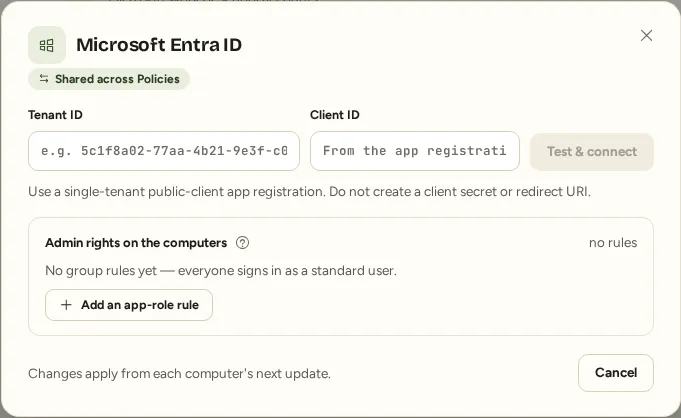
- In Tiaris, open Settings > Computer sign-in.
- Under School accounts, find Microsoft Entra ID and select Connect.
- Paste the Directory (tenant) ID into Tenant ID and the Application (client) ID into Client ID. This sign-in method uses no client secret.
- Add administrator rules if you need them — see Give people administrator rights. Without a rule, everyone signs in as a standard user.
- Select Test & connect.
- On a phone or another computer, open the displayed Microsoft address, enter the one-time code, and sign in with the test account.
- Tiaris reports which account signed in, the username it lands on at the computer, and whether it received administrator rights. Select Done.
The connection is saved only when the test sign-in succeeds. While Tiaris waits for the test sign-in, or after it fails, Connect without testing saves the connection unverified.
Until a connection is saved, the dialog ends in Cancel, which asks before it drops what you typed. Once it is saved, the button there reads Save changes while something changed and Done when nothing did. The pill Shared across Policies says that every Policy with this source uses the same connection; changes apply from each computer’s next update.
Give people administrator rights
Section titled “Give people administrator rights”Rules under Admin rights on the computers match a claim in the identity token Microsoft issues.
The reliable approach is an app role. In the app registration, define an app role, assign users or groups to it, then add a rule with claim roles and the role’s Value — for example Tiaris.LocalAdmin — mapped to Local administrator.
To match a group directly, use claim groups with the group’s immutable Object ID, not its name, and configure the app registration to emit the groups claim. Everyone who matches no rule signs in as a standard user.
Microsoft Entra ID with a password
Section titled “Microsoft Entra ID with a password”Only for a connection made earlier: Settings > Computer sign-in lists Microsoft Entra ID (password) only while it exists. People type their Microsoft password — or a PIN they set the first time — directly on the sign-in screen, and multi-factor prompts appear there instead of in a browser.
This method registers each computer with Microsoft the first time someone signs in on it, using that person’s own credentials. Tiaris stores no secret for it, and there is no tenant ID to enter — the tenant is discovered from the domain.
Prepare Entra
Section titled “Prepare Entra”Usually nothing needs to be created. Collect the tenant’s verified domains that people sign in with, such as directory.example and tenant.onmicrosoft.com.
Create an app registration only if your tenant blocks Microsoft’s built-in Linux sign-in application. In that case register a public client application as described above and keep its Application (client) ID for the advanced setting.
For administrator rights, collect the Object ID of each Entra group whose members should be administrators. Open Entra ID > Groups, select the group, and copy the Object ID from its overview.
Connect it to Tiaris
Section titled “Connect it to Tiaris”- In Tiaris, open Settings > Computer sign-in.
- Under School accounts, find Microsoft Entra ID (password) and select Manage.
- In Entra domains, check the verified domains people sign in with, separated by commas. People sign in with their full Microsoft address, such as
[email protected], so every domain in use needs to be listed. - Choose a Sign-in method:
- Microsoft password every time — people type their Microsoft password at every sign-in, on every computer. Extra verification appears as a prompt on the sign-in screen.
- Set a PIN on the first sign-in — people set up a PIN the first time they use each computer, then type that PIN instead of their password on that computer.
- Optionally list Administrator groups, one Entra group Object ID per line. Group names are rejected, because the computer can only match on the Object ID.
- Leave Advanced Microsoft settings alone unless your tenant needs them. Microsoft cloud selects Worldwide, US Government, or China (21Vianet); Application (client) ID is only needed when the tenant blocks the built-in Linux sign-in application.
- Select Save changes.
Check that it works
Section titled “Check that it works”There is nothing to test from Tiaris: the registration happens between the computer and Microsoft at the first sign-in, so Tiaris never holds a credential it could rehearse with.
Verify it on a real computer instead. Select this source in a Policy, send that Policy to one test computer as described in Set up school accounts, and sign in there with a school account before rolling it out more widely.