

Tiaris guide
Use Tiaris Nest
Install a Nest, confirm it is ready, and respond when it needs attention.

Tiaris Nest is an optional local server that makes computer setup and software delivery faster and more resilient. Once installed, it manages itself. The normal administrator flow is Install → Enroll → Ready → intervene only when something is wrong.
Install a Nest
Section titled “Install a Nest”On Home, select Set up Nest on the Nest card and choose Download Nest ISO. Use that ISO to start the server that will become your Nest.
The Console follows the real setup lifecycle:
- ISO ready — the personalized Nest ISO is ready to use.
- Connected — the server has started and reached Tiaris.
- Enrolling — Nest is securing its managed identity.
- Preparing services — Nest is installing and checking what it needs.
- Ready — Nest is enrolled and Tiaris has confirmed its services.
There are no estimated percentages. Before installation begins, confirm the exact disk Nest may erase. If the server has one safe disk and one connected wired network, Tiaris selects them for you; ambiguous choices are never guessed. After you choose Install a Nest, no further input is normally required.
When Nest is ready
Section titled “When Nest is ready”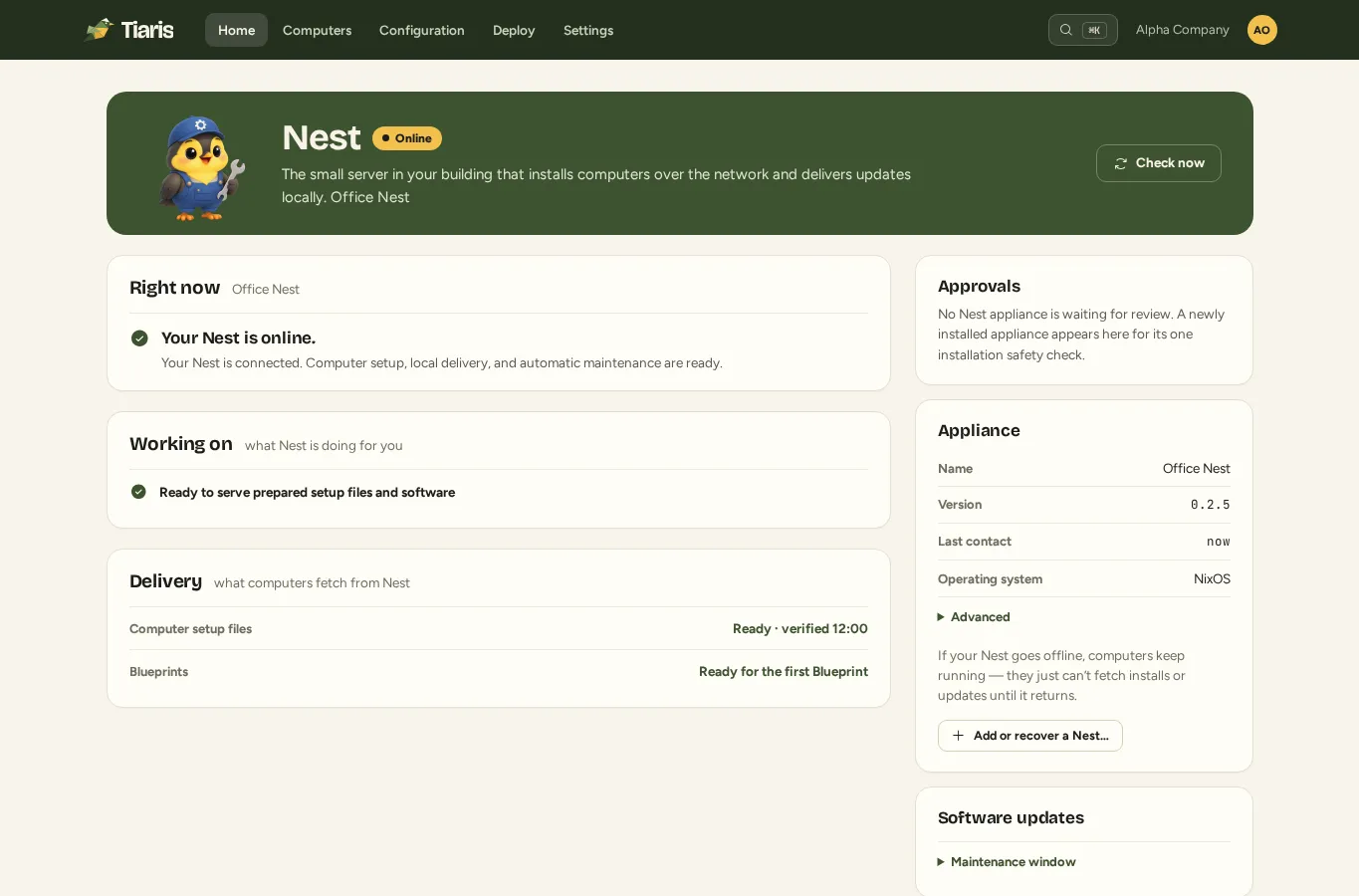
A healthy page begins with Your Nest is online. Tiaris checks connection, full status reporting, computer setup files, local delivery, and automatic maintenance independently before showing this message. A Nest can remain connected while one of those capabilities needs attention, so connected never means healthy by itself. The page shows only:
- Right now — one plain-language health conclusion and what remains available.
- Working on — current updates, preparation, setup activity, or that Nest is ready and waiting.
- Delivery — whether computer setup files and published Blueprints are ready locally.
- Approvals — a newly installed Nest waiting for its one disk safety check.
- Appliance — each server’s name, installed Nest version, recent contact, and a short availability explanation. The version remains visible when a server is offline; Not reported means it has not supplied its installed version yet.
- Needs attention — shown only when there is a clear action to take.
Processor, memory, storage, node IDs, runtime hashes, transport details, and service internals are not shown during healthy operation. The Needs attention section is hidden when Nest is healthy. During an expected update or reconciliation, Tiaris explains what it is doing automatically. If a capability is degraded, the page names it and lists what is still working. If Nest is offline, first check server power and its wired network connection; Tiaris recognizes the server automatically when it reconnects.
The Console also withholds Your Nest is online if a capability result is missing or disagrees with the overall result, or if a newer Nest detail has already reported an issue. Normal refresh and reconciliation resolve these short-lived mixed snapshots automatically.
If two or more connected Nest servers are still in the same failure domain, the Console reports that service is operational but independent failover is not yet available. A deliberate one-server installation is shown as single-node rather than treated as a fault. Tiaris also withholds the green result while it cannot check for signed infrastructure updates, even though existing services can remain available.
When Nest needs attention
Section titled “When Nest needs attention”Follow the one action on the issue, when an action is shown. Typical actions are Check again after a connection problem, Open Blueprint for a Blueprint that must change, Resume updates or End maintenance for an existing hold, and Reinstall Nest when an older appliance cannot update safely.
Many issues deliberately have no button. Tiaris retries runtime synchronization, Blueprint preparation, cache recovery, and local service repair automatically. It keeps verified working files available where possible and records technical evidence for support. Administrators do not schedule appliance updates, operate the cache, requeue signed runtimes, inspect raw identities, or open support SSH from this page.
Nest and Tiaris can run different compatible software revisions; they reconcile compatible changes automatically. If normal recovery does not converge, record the visible issue and approximate time for support. Support and authorized operators can use the retained telemetry and authenticated APIs without exposing a DIY troubleshooting console to every administrator.
Add or recover another Nest
Section titled “Add or recover another Nest”On an existing Nest page, choose Add or recover Nest… in the Appliance card. This opens the same focused installation and recovery flow without mixing its history and controls into routine health. Preserve TIARIS_STATE during recovery unless a full disk erase is intentional.
For the distinction between Nest appliance media and the files Nest uses to set up workstations, see Downloads.
Starting computers from the network
Section titled “Starting computers from the network”On the same wired network as Nest, select network boot on the computer. Nest supplies the boot information automatically while your existing DHCP server continues assigning network addresses. You do not need to enter a PXE boot address in your router. Computers on another VLAN may require help from your network administrator. If your network already runs another PXE service, have your operator configure the services to coexist.