

Tiaris guide
Add computers
Install Tiaris, approve a pending computer, and assign its first Blueprint.

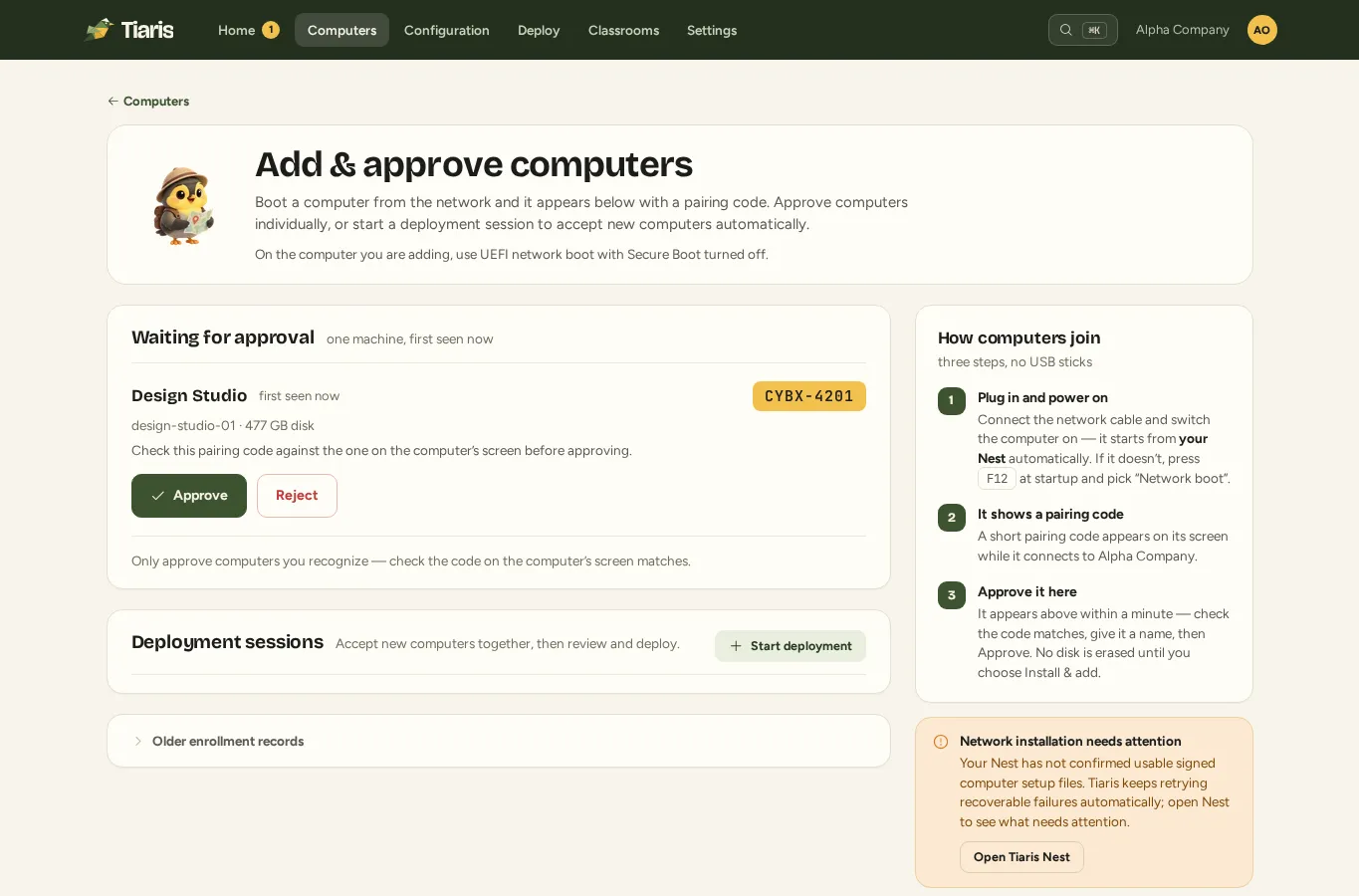
Open Computers > Add computers to install or adopt a computer. Pending approvals appear before the network-boot instructions so newly detected computers are easy to find.
Install through Tiaris Nest
Section titled “Install through Tiaris Nest”- On Home, select Open Nest on the Nest card and confirm that Delivery > Computer setup files is Ready.
- Connect the target computer to power and the Nest network using Ethernet.
- Enable UEFI network boot and select the network adapter from the firmware boot menu.
- Choose the Nest installer profile. Nest creates a short-lived boot session and serves the shared signed runtime.
- Wait for the pairing code before approving any installation.
Computer setup files reconcile automatically across compatible Tiaris and Nest updates. If they are temporarily unavailable, new network installs wait while Nest continues its other work. Add computers says getting ready only for normal automatic reconciliation, needs attention for a genuine runtime problem, and could not be checked when current evidence is unavailable. If normal automatic recovery does not finish, record the visible issue and approximate time for support. Authenticated support tooling retains the stable runtime code and can exceptionally requeue the same signed identity without changing it. A failed candidate update does not stop installation while Nest can still serve its verified active computer setup files.
All organizations and profiles on a Nest share the same immutable kernel, bootstrap initrd, and SquashFS. Organization and profile information is carried only in the short-lived boot context. See Use Tiaris Nest.
Settings > Downloads explains the difference between this workstation netboot bundle and the separately provisioned Nest appliance ISO. See Downloads.
Approve the pending computer
Section titled “Approve the pending computer”- Match the pairing code displayed by the computer with the code in Waiting for approval.
- Confirm the proposed name and installation disk.
- Choose the Blueprint the computer should follow.
- Review the hardware driver choice when one is offered.
- Choose Install & add to prepare the exact reviewed NixOS target on Nest, or Add without installing to adopt an already installed system.
- Wait for Preparing exact installation on Nest to complete. Tiaris prepares one exact installation per kind of computer and reuses it: when this model’s installation is already prepared (for example after an earlier Install & add, a reinstall, or a recent Blueprint release), installation starts right away.
- Review the confirmation naming the exact computer and disk, acknowledge that all data on that disk will be erased, and then continue.
The pairing code disappears after adoption. The computer restarts into its managed system after installation completes.