

Tiaris guide
Set up school accounts
Let people sign in to managed computers with their Microsoft Entra ID, Google Workspace or Authentik account.

With school accounts, people sign in on the sign-in screen of a managed computer with the school or work account they already have. In a Policy this is the sign-in method School accounts. It signs them in to the computer only; it does not change how administrators sign in to Tiaris.
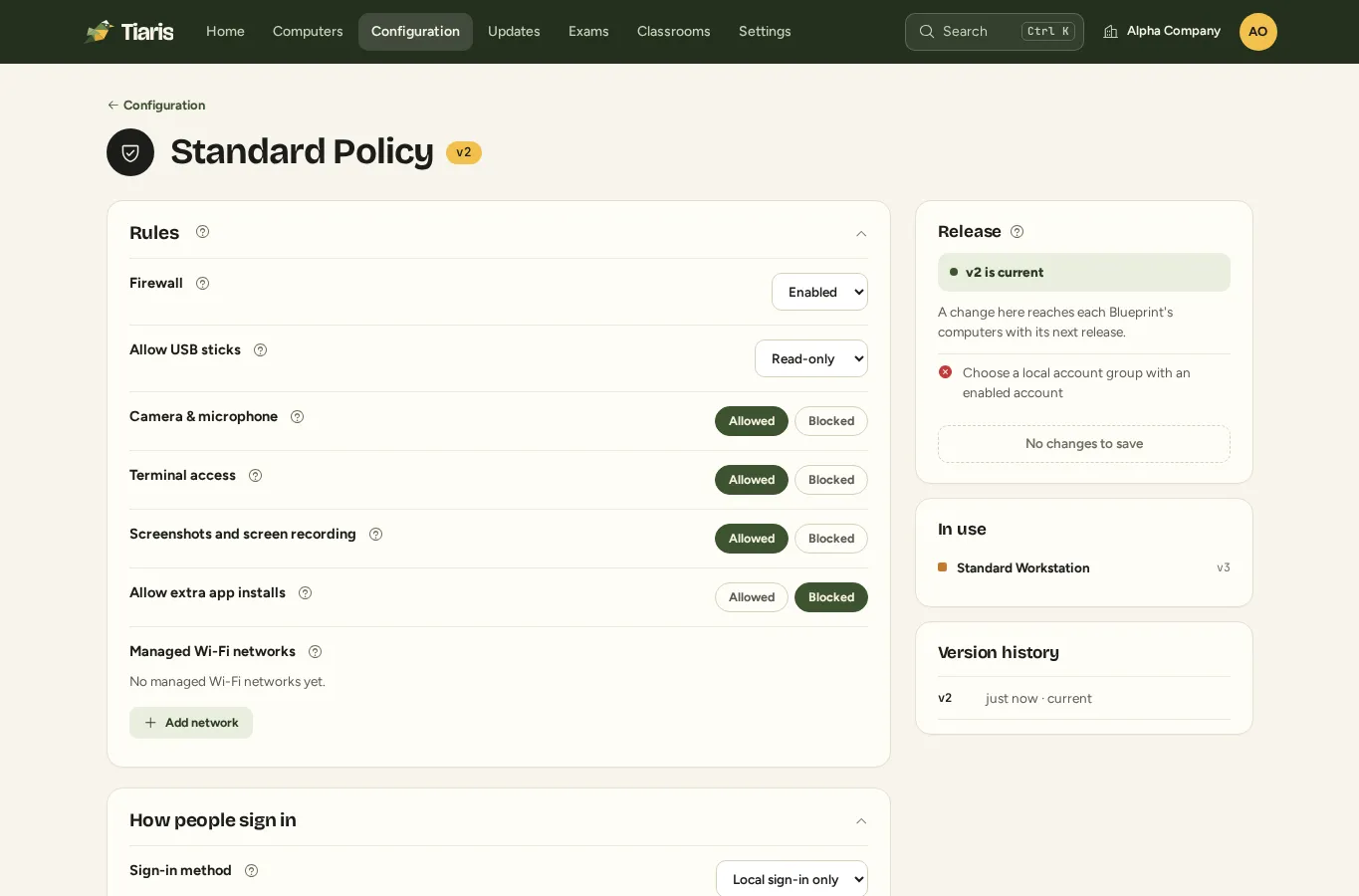
The connections belong to the organization and are made once under Settings > Computer sign-in. Each Policy then chooses independently whether its computers use a connected source, and how the sign-in screen behaves.
Setting up school accounts has three parts:
- Create an application or client in the Microsoft or Google administrator portal. For Authentik, Tiaris does this for you.
- Connect it once in Settings > Computer sign-in.
- Select it in each Policy that should use it, then release the resulting Blueprint update.
Steps 1 and 2 are on the provider pages: Microsoft Entra ID sign-in and Google Workspace sign-in. For Authentik, see Connect Authentik. Step 3 is described below.
Choose a sign-in source
Section titled “Choose a sign-in source”Tiaris offers one way to sign in for each provider: the one with the most testing behind it.
| Source | How people sign in | Administrator rights |
|---|---|---|
| Microsoft Entra ID | Web address and one-time code, completed on another device | Entra app role or group |
| Google Workspace (password) | Google password typed at the computer | Not available; use a local recovery account |
| Authentik | Authentik username and password typed at the computer | Not available; use a local recovery account |
The Microsoft and Google sources have not yet signed anyone in to a computer against a real Microsoft or Google tenant. Test the connection when you set it up, and try the Policy on one computer before the rest.
Microsoft Entra ID with a password and Google Workspace with a sign-in code are no longer offered for a new connection. A connection made earlier keeps working, and you can still open and edit it under Settings > Computer sign-in.
Two further differences matter when planning:
- Sign-in screen. GNOME is the only managed desktop, so Taskbar and Dock computers sign in on the GNOME sign-in screen (GDM) and every source works there. Microsoft Entra ID shows its web address and code on that screen; Google Workspace (password) and Authentik take the password on that screen. No desktop has no sign-in screen.
- Software preparation. Microsoft Entra ID needs software that Tiaris doesn’t have ready, so your Nest must prepare it. It does so once the sign-in method is approved for the organization. See When school accounts need approval first. Google Workspace (password) and Authentik need no preparation.
Connect Authentik
Section titled “Connect Authentik”In Settings > Computer sign-in, find Authentik under School accounts and select Connect. Enter the Authentik address and a Temporary setup token: an expiring API token of an Authentik administrator, never the administrator’s password. Select Find my Authentik settings and choose the groups whose people may sign in on the computers. Tiaris lists the changes it will make in Authentik; select Configure Authentik. Then use Test computer sign-in with an account from an allowed group (its password is used once and is not saved), and select Finish setup.
Tiaris keeps setup access for at most 20 minutes. Delete the setup token in Authentik afterwards: closing the setup does not revoke it there. People who sign in with Authentik are standard users on the computers.
Before you start
Section titled “Before you start”Have these ready:
- access to create an application in the Microsoft or Google administrator portal;
- a school account without administrator rights for the test sign-in;
- a representative computer for testing the resulting Blueprint update; and
- a local account group with one administrator account, for the local recovery account.
Turn it on for a Policy
Section titled “Turn it on for a Policy”- Open Configuration > Policies and select the Policy to change.
- Under How people sign in, set Sign-in method to School accounts, then choose the connected source under Account source. Right below it, one line says how that source stands, for example Connected · Manage sources. When none is connected yet, the Policy says No account source is connected yet.: select Connect school accounts, or connect one under Settings > Computer sign-in.
- Choose Offline sign-in. Allowed after first sign-in (the default) lets someone keep signing in when the directory or the internet is unreachable, once they have signed in successfully at least once on that computer. Always verify online requires the directory every time.
- Under Local recovery account, choose a local account group that holds exactly one account, an administrator, or select New recovery account to make one. That account is put on every computer next to the school accounts, so the administrator can still sign in when the school accounts or the network are unreachable. Choose None to keep no local account.
- Select Save without releasing. Every released Blueprint that uses the Policy gets a prepared version; computers do not change yet.
- Open each affected Blueprint, select Release vN, and choose Try it on one computer first to test the change on a representative computer before the rest.
The first sign-in with a school account on a computer must be online, whichever source is used. With Microsoft Entra ID, the computer then creates the local identity and asks the person to choose the password they will use when signing in offline.
Change the sign-in source
Section titled “Change the sign-in source”A computer keeps the sign-in source it was installed with: its accounts and home folders belong to that source. Tiaris therefore names the computers to reinstall when you change a Policy’s source while computers installed with the old one use it, and again when a Blueprint would release the change to such a computer. A computer cannot be moved to a Blueprint that uses another source either; reinstall it with that Blueprint instead. When you set a classroom’s Blueprint, the computers that can move get it, and Tiaris names the ones to reinstall.
When school accounts need approval first
Section titled “When school accounts need approval first”Microsoft Entra ID needs software that Tiaris doesn’t have ready. Your Nest prepares it once the sign-in method is approved for the organization. An Admin approves the sign-in method in the Policy, as below. To revoke an approval, ask Tiaris support.
When the sign-in method isn’t approved yet, the Policy shows School accounts need approval first under How people sign in, and the Policy cannot be saved until this is resolved: select Approve this sign-in method, then Approve for organization. The approval is for the whole organization.
Then save the Policy and release the change. Google Workspace (password) and Authentik are unaffected: they need no preparation.
Troubleshoot the connection
Section titled “Troubleshoot the connection”- Tiaris cannot start the test: check the copied IDs and secrets, the Entra public-client setting, the Google client type, and provider availability.
- The test account is rejected: use an account from the configured tenant or Workspace domain, and review provider Conditional Access, multi-factor, consent, or API-control rules.
- The connection works but the sign-in choice is missing on the computer: confirm the Policy was saved, its prepared Blueprint version was released, that the sign-in method is approved (see above), and that the sign-in screen is compatible with the chosen source.
- An administrator rule does not match: confirm the identity token or group really carries the named claim and exact value. Remove the rule while investigating so unexpected people do not receive administrator rights.
- Sign-in works but files show numbers instead of names: the directory is not returning the POSIX attributes the computer needs. See Google Workspace sign-in.
Never place client secrets, certificates, one-time codes, tokens, or screenshots containing real account data in support tickets or documentation.