

Tiaris guide
Manage Policies
Set organization rules that Blueprints cannot replace.

Policies exclusively define reusable organization rules. Use them for sign-in behavior, security restrictions, network and access controls, update expectations, printing, and monitoring. Applications, Desktop Experience, appearance, kiosk behavior, and assignment belong to Blueprints and do not appear as Policy settings.
- Open Configuration > Policies.
- Select the Policy you want to change.
- Review each changed value and its effect on linked Blueprints.
- Expand Advanced only when you need a less common category. Only one category opens at a time.
- Select Save & Deploy to save the Policy and prepare an approval plan for each affected released Blueprint. The confirmation names every affected Blueprint and the intended computer scope. Open Deploy, review the exact prerequisites and targets, then choose Approve and start for the intended plan. Saving or preparing files never starts delivery by itself. A Blueprint with an update already running retains its candidate for later review.
- Select Save instead to record the Policy change without touching any computer. Every Blueprint that follows the Policy gets a prepared version; deploy them from the Deploy page, where you can also try each one on a test computer first.
Policy changes never bypass the release and rollout process: each Blueprint still gets its own immutable version and its own rollout, and the Deploy page shows every one of them.
Rename, delete, and revision information live under Management. Open Advanced for Managed Wi-Fi networks. Networks are staged with the rest of the Policy configuration and committed by Save or Save & Deploy. Removing a network in the editor does not immediately remove it from a workstation. See Wi-Fi and certificates.
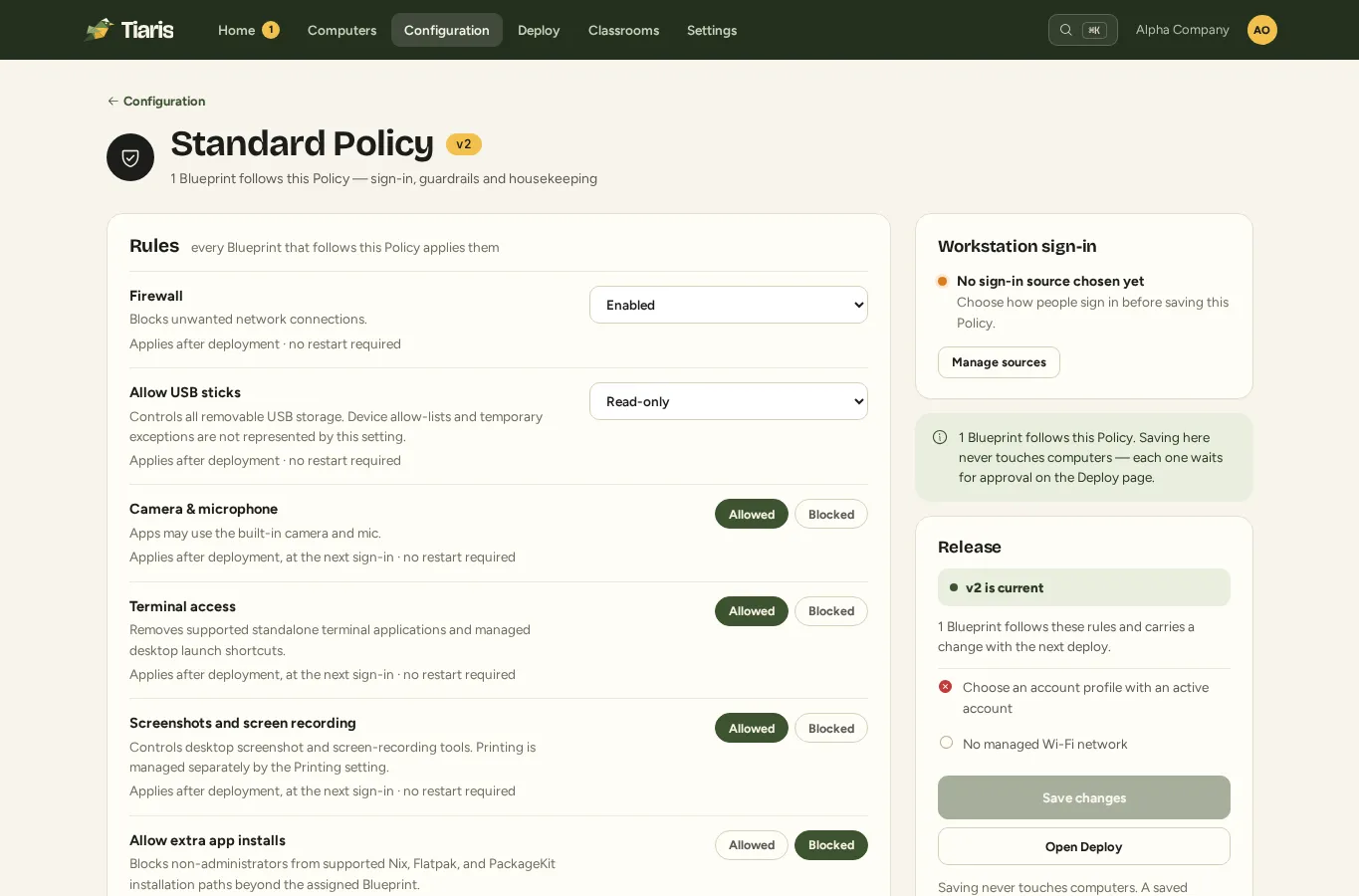
Use the workstation settings reference for each rule’s default, supported choices, and activation timing. Test networking and sign-in on one representative computer before a broader deployment.
Classroom baseline preview
Section titled “Classroom baseline preview”The Classroom baseline editor sets administrator app permissions and optional HTTPS site, page or path rules. Teachers can narrow this baseline during a lesson but cannot edit or broaden it. Save and apply it through the same Policy/Blueprint workflow. All supported apps means reviewed installed launchers inside the managed GNOME session. End or valid expiry restores baseline-permitted work. This preview requires separately released workstation runtime 1.0.98 and signed Chromium 0.2.2; a Policy save or Manage deployment does not install them. See Prepare classrooms.
Directory sign-in
Section titled “Directory sign-in”A Policy can let people sign in to managed computers with their Microsoft Entra ID or Google Workspace account, either with a one-time sign-in code or with their directory password at the login screen. Directory connections and organization-wide local account groups are configured once under Settings > Sign-in sources. The Policy then selects the source its computers use. Follow Set up directory sign-in to choose a source, test the connection, and deploy the resulting Policy change safely.