

Tiaris guide
Reinstall or decommission a computer
Reset an approved installation safely or revoke management without confusing the two actions.

Open the computer from Computers and confirm its identity. Reinstalling and decommissioning solve different problems.
| Action | Result | Disk contents |
|---|---|---|
| Reinstall | Installs an exact released Blueprint through the managed installation path. | The approved installation disk is erased. |
| Decommission | Removes management access and the inventory entry. | The existing system keeps running; this action does not wipe it. |
Before a reinstall
Section titled “Before a reinstall”Back up user data you need to keep. Confirm the released Blueprint, the intended installation disk, current hardware inventory, and access to a ready Nest. Disconnect unrelated removable storage where practical.
Tiaris pins the reviewed disk identity and rechecks it before authorizing installation. If the disk is missing or ambiguous, or hardware evidence is unavailable, follow the reported blocker. Do not select a different disk simply to clear an error.
Schedule the reinstall
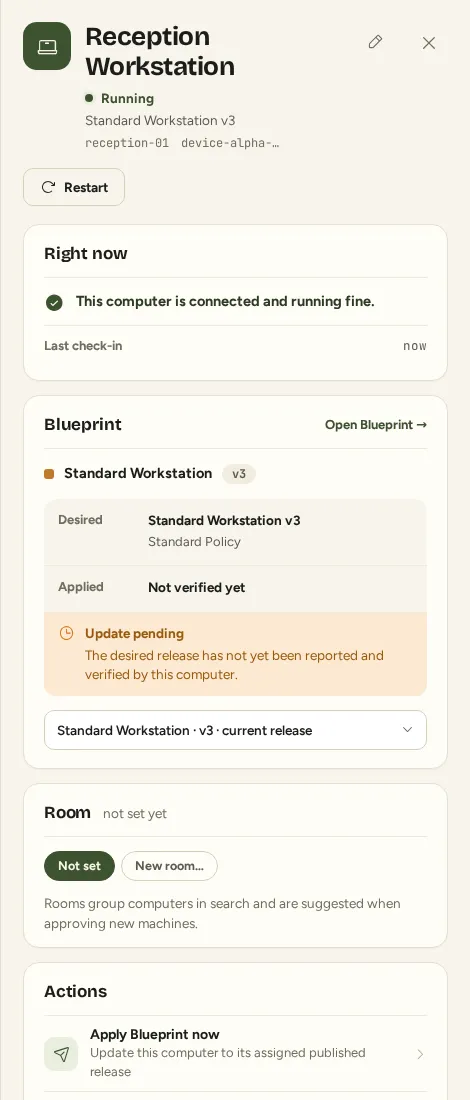
Section titled “Schedule the reinstall”- Open the computer’s management actions and select Reinstall.
- Review the computer, Blueprint/version, disk, and destructive confirmation.
- Choose the offered handoff policy: the reinstall can wait for the next reboot, or Tiaris can restart the computer automatically when preparation is safely ready.
- Confirm only when the intended disk may be erased.
- Follow the operation in the computer panel. Leave the computer powered and connected during preparation.
Do not restart yet is an active instruction. Tiaris may still be preparing exact installation files, a compatible runtime, or the protected network-boot binding. With next-reboot handoff, wait until the panel explicitly makes the restart available. Automatic handoff does not require an additional manual restart.
After installation and restart, verify recent contact, the released Blueprint, and workstation sign-in. A new enrollment alone cannot reconnect a previously decommissioned installed system; approve enrollment and reinstall it through the supported path.
Cancel or recover
Section titled “Cancel or recover”Use Cancel only while the operation makes that action available. Cancellation withdraws the outstanding installation authority and queued work; a restart already running may still finish. Cancellation does not reverse disk changes that have already begun.
A network outage or benign inventory refresh can result in an automatic wait/retry. The current operation is the source of truth. Repeatedly submitting a reinstall is not a useful recovery method.
If the intended disk has actually changed, cancel and review a new request for the correct disk. If preparation remains blocked, record the operation’s stage and reason for support.
Decommission
Section titled “Decommission”Choose Decommission only when the computer should stop receiving management and updates. Review the computer identity and confirm the action.
The computer disappears from the Console, its management access is revoked, and Nest forgets its former boot association. Its installed system and data remain on disk. Use your organization’s separate data-erasure procedure when disposal requires a wipe.
To manage it again, start a fresh network enrollment, approve the pairing code, and reinstall the machine. See Add computers.