

Tiaris guide
Diagnostics and configuration checks
Read current checks, investigate commands, and collect evidence without confusing execution, configuration, and desktop state.

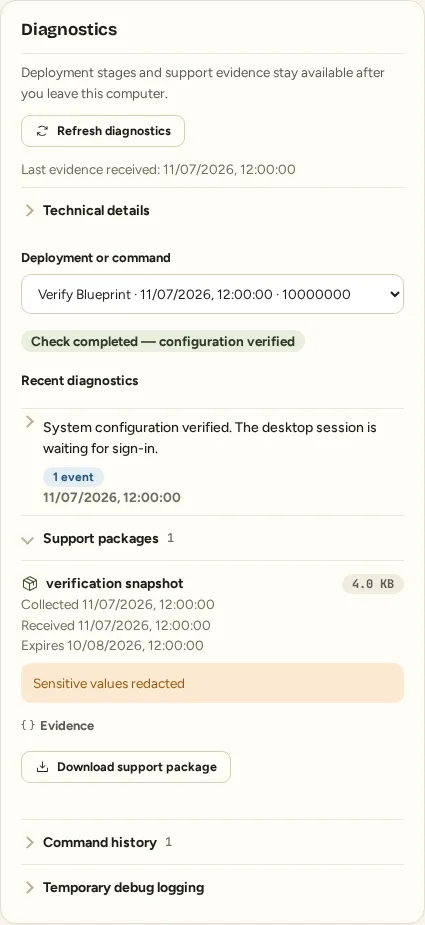
Select a computer from Computers and find Diagnostics in its detail panel. This view brings together commands, a persistent operational timeline, and retained support evidence. Available evidence depends on the computer’s installed runtime and collection policy.
Ask three separate questions
Section titled “Ask three separate questions”| Question | Evidence | What it establishes |
|---|---|---|
| Did the action run? | The command’s pending, dispatched, completed, or failed state. | Whether command execution finished. |
| Is the managed system configured correctly? | Per-setting pass or drift checks and their reasons. | Whether the probed system matches its expected configuration. |
| What does an existing desktop session show? | Session observations: showing the managed value, pending sign-in, or unobservable. | What can currently be seen or updated inside that session. |
A completed verification can say Check completed — drift detected. Completion does not mean compliance. An unobservable session also does not prove drift: the helper may be unable to reach or observe that user’s desktop.
Request a fresh check
Section titled “Request a fresh check”- Confirm that the computer is checking in.
- Choose Verify Blueprint in its detail panel.
- Wait for the queued verification to return.
- Open the configuration checks and read every reported reason.
- Where the setting requires the next sign-in, sign out and back in on the workstation, then check again.
A restart and a sign-out/sign-in are different boundaries. Follow the setting’s activation requirement, rather than repeatedly restarting a computer whose desktop session is still pending.
Follow the timeline
Section titled “Follow the timeline”Choose the relevant entry in Deployment or command. Use its stage, occurrence time, and reported versions to relate the evidence to the attempted change. Events can arrive after a connection outage; occurrence and receipt times can therefore differ.
The Running Agent and Installed runtime are separate observations. Retained evidence can belong to an earlier boot or configuration attempt, so compare it with the current computer state before drawing a conclusion.
When activation fails, read Original activation error first. Then review any Rollback error. A successful rollback does not erase the original failure; a failed rollback adds a second problem that support needs to see.
Download evidence
Section titled “Download evidence”Use Download support package for a retained diagnostic package when available. Use Collect support logs or Download support logs for the supported log-collection path on that computer.
Collecting can take time and may wait for the next contact. Navigate away if needed, then return to see the recorded result; an empty current panel is not permission to assume collection succeeded.
Redaction, truncation, unavailable sources, and package expiry are reported explicitly. Not collected, Expired, or Unavailable describe limits of the evidence. They do not establish that the underlying system was healthy.
Store downloaded packages in your organization’s approved support location. Provide them through its support process, together with the time, affected computer, and visible error. See Get support.
Older runtimes and temporary debug collection
Section titled “Older runtimes and temporary debug collection”Older Agents can continue providing command history and the existing support-log command even when the newer timeline/package collector is unavailable. The Console explains missing runtime support. Ask the operator to check version compatibility.
Where your role and runtime expose temporary debug collection, review its duration and scope. It expires automatically and can be revoked. A queued start on an offline computer can be cancelled. Do not leave debug collection enabled beyond the support task.