

Tiaris guide
Release changes
Release a change, try it on one computer first, and see on Updates what is going where and what changed lately.

Changes reach computers from the editors: Save and release… in a Blueprint, Policy or App List, and Release vN for a prepared Blueprint version, release the version after one confirmation (see Release a change and How configuration fits together). Every computer then follows its Blueprint’s newest version by itself. Nothing is approved, scheduled or sent again.
The Updates page
Section titled “The Updates page”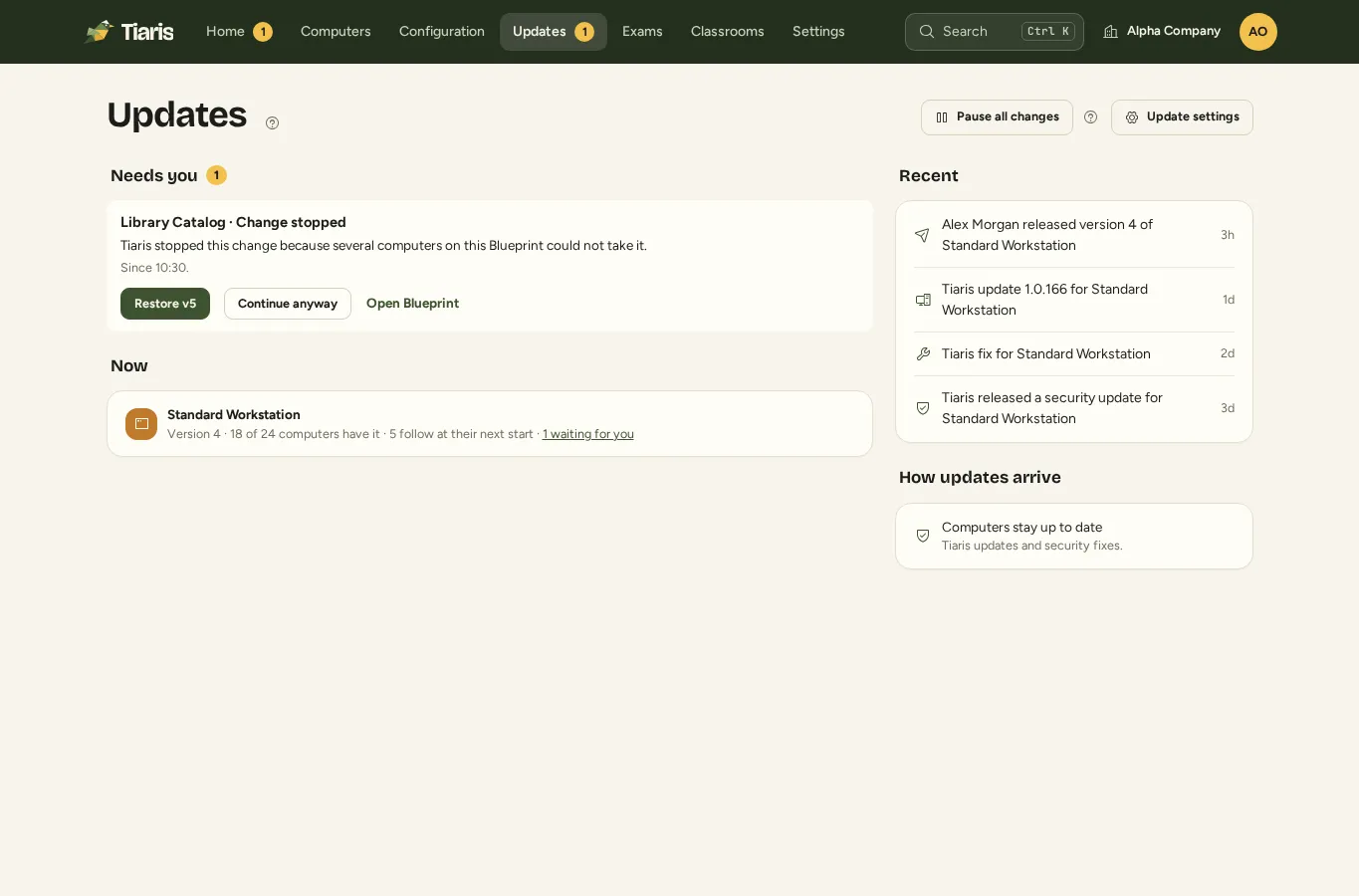
Updates says what is going where right now, what needs you, and what happened lately. A part with nothing in it is not shown.
- All changes are paused: the notice of a pause, when there is one (see Pause all changes).
- Needs you, with how many there are: what needs a person here, the most urgent first. Each card’s title starts with what it is about, for example “Staff Laptop · Change stopped”. The cards: a change Tiaris stopped because several computers could not take it, with Restore vN and Continue anyway on its card and how far the Blueprint’s computers are (“Version 11 · 1 of 12 computers has it · 11 waiting for you”; choose the count to see them), a version the Nest could not build (Prepare again), and each software update that waits for Update now, as a card of its own with what it changes (Software updates). A new Tiaris update follows by itself and is installed for each computer’s next start; with Keep computers up to date off it waits here as one line with Update now.
- Now: one row for each Blueprint whose computers are still on their way to its newest version, for example “Version 14 · 12 of 30 computers have it · 15 follow at their next start · 3 waiting for you”. A change Tiaris stopped is not repeated here: its card in Needs you says how far it is. Computers that follow at their next start installed the change and take it when they restart, or get it when they are switched on. Choose a count to see those computers; choose the Blueprint to open it. A version on trial on one computer says how the trial goes here too; once it worked, Release to everyone releases it (see Try it on one computer first).
- Firmware: the firmware updates that wait for your approval, and the computers whose firmware Tiaris does not check. It is shown only when there is something to show.
- Recent: what changed lately, one line each: “Grace released version 18 of Classroom Desktop”, “Priya restored version 2 of Library Catalog”, “Tiaris released a security update for Library Catalog”, “Tiaris fix for 2 Blueprints” (Tiaris wrote a version’s own files again; nothing you chose changed), “Tiaris update 1.0.198 for 2 Blueprints” (a new version of the software Tiaris runs on the computers). Each line says when. How the computers stand is in Needs you and Now, not here. Choose a line to open the Blueprint and its versions; Show more lists older changes.
- How updates arrive: who releases software updates, the software your computers run, when your Nest last checked for new versions, and Check now.
Update settings, at the top of the page, is the one way into the side panel where you choose how computers stay up to date and which emails you get (Software updates).
When nothing moves and nothing waits, the page says every computer has its Blueprint’s newest version. On narrow screens Recent comes below the rest.
Release a change
Section titled “Release a change”Save and release… in the Blueprint editor asks once. The confirmation names the version and what changed, and says how many of the Blueprint’s computers are on and follow it now, and how many are switched off and follow when they are next switched on. Confirm, and the version is released. A change that brings a software update or a Tiaris update is installed at once and takes effect at the computer’s next start. Release vN releases a prepared version through the same confirmation. A computer that is behind has Apply now on its own page.
In a Policy or App List, Save and release… saves it and releases the new version of every released Blueprint that uses it. A Blueprint that could not take it is named with its reason; the others go on.
To go back, open the Blueprint and choose Restore vN in its versions: every computer on the Blueprint follows that version, and it undoes a software update too. To keep a version away from computers, pause all changes, restore an earlier version, or give them another Blueprint.
Try it on one computer first
Section titled “Try it on one computer first”In the confirmation, choose Try it on one computer first and pick one of the Blueprint’s computers that is on and not busy with other work. Only that computer gets the new version; the others stay on the released one. A trial needs a released version to go back to and at least two computers on the Blueprint, so a Blueprint’s first version, or one with a single computer, goes to everyone. From a Policy or App List you can try only when the change reaches exactly one Blueprint.
The Blueprint’s card in Configuration, the Release card in its editor and its row under Now on Updates then say how it goes, for example “Version 14 is on trial on Lokaal 12-04”: it is being updated, it works there, it did not work there (with the reason), or the computer left the Blueprint. Choose:
- Release to everyone to release the version: every computer on the Blueprint follows it, the test computer too. Once the trial worked, this button is also on the Blueprint’s row under Now; it asks once, for example “Release version 14 of Classroom Desktop to its 30 computers?”.
- Try again (in the editor) when it did not work, once the cause is fixed.
- Discard (in the editor) to end the trial. The test computer goes back to the released version by itself.
Releasing, restoring or releasing another version also ends an open trial.
When a change does not reach a computer
Section titled “When a change does not reach a computer”A computer that cannot take the newest version shows why on its own page, with its own way out such as Try again; Tiaris keeps trying by itself. One computer that is off, waits for a restart or is stuck holds back no other computer. A computer that was off gets the newest version when it is switched on, however many versions it missed.
When at least three computers cannot take a change and more failed than took it, Tiaris stops it from reaching more computers. The Blueprint shows Stopped: 3 computers could not take this change, and it is one card under Needs you on Home and on Updates, with the same line on both: how far the Blueprint’s computers are, for example “Version 6 · 1 of 12 computers has it · 11 waiting for you”. Choose a count to see those computers. The computers that failed keep retrying; the others wait. On the card, choose Restore v5 to go back, or Continue anyway to release the change to the computers that wait. A Viewer sees the card without those buttons, with “An admin can restore the earlier version or continue anyway.” The stop ends by itself with the next version, or once more computers took the change than failed. A Blueprint with fewer than three computers never stops.
Pause all changes
Section titled “Pause all changes”Use Pause all changes on Updates when nothing may change for a while, for example during exams. Give a reason and choose when the pause ends: Tomorrow 08:00, 3 days, A week, or A date (the pause then ends at 08:00 that day). A pause lasts at most 14 days. Only Admins can pause or resume changes.
While changes are paused, no computer gets a new Blueprint version, Tiaris update or software update, and Nest does not update by itself. A restore of an older version, repairs and what you ask for yourself keep working: Update now on the Nest page still updates the Nest. Work a computer already started finishes.
The notice on Updates says who paused, why and when the pause ends. Choose Change the end to give a new reason and end, or Resume changes, with a reason, to end it now. At its end the pause stops by itself, and everything that waited continues where it stopped. When Tiaris support pauses all changes, you see their reason and end, and only they can resume early.