

Tiaris guide
Create and edit Blueprints
Define the apps and settings a group of computers should use.

A Blueprint is the desired computer experience for one or more computers. It owns the choice of App Lists, Desktop Experience, appearance, and assignment. Its assigned Policy separately owns organization rules such as sign-in, security, networking, access, and updates.
Create a Blueprint
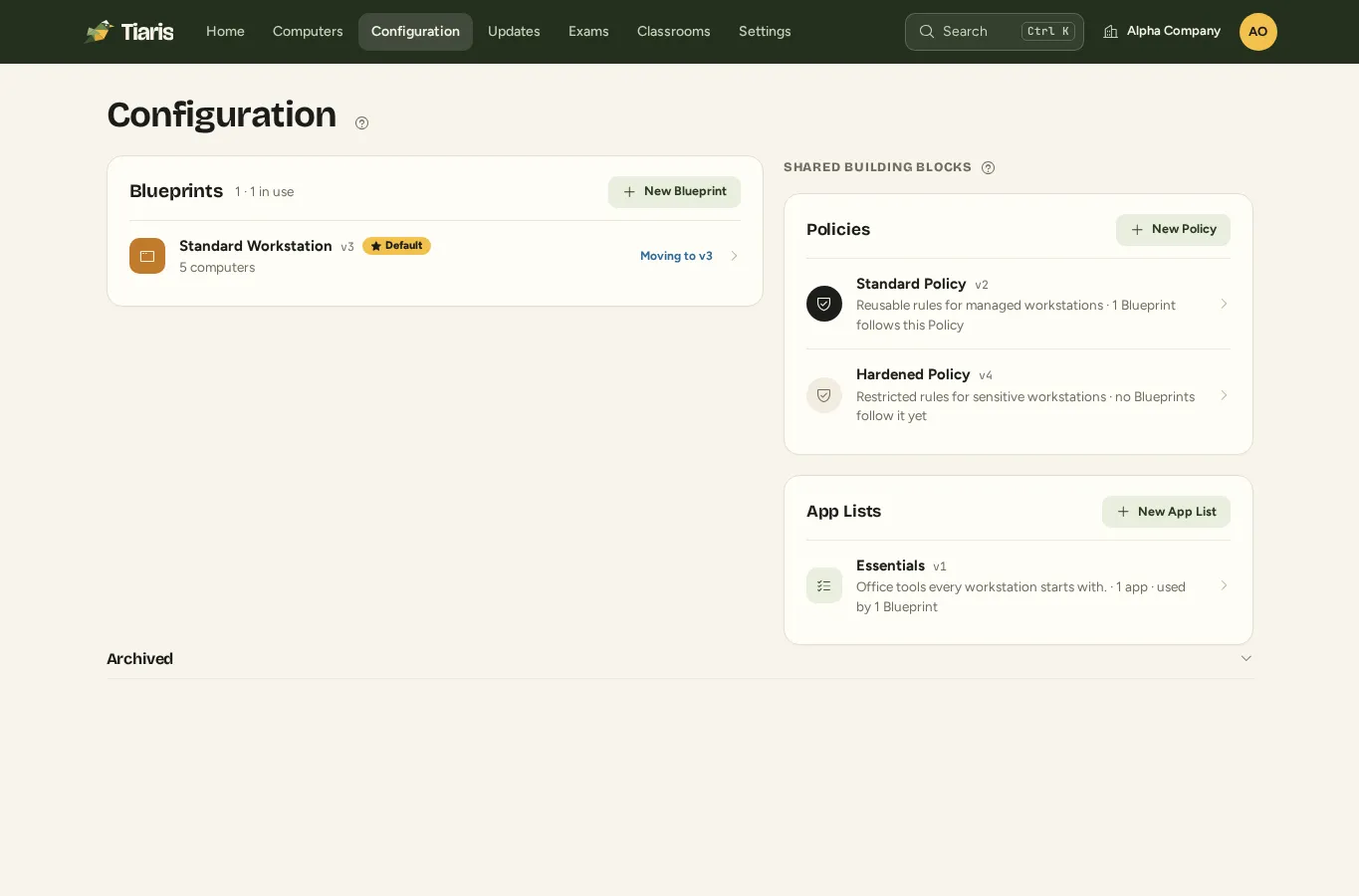
Section titled “Create a Blueprint”- Open Configuration > Blueprints and select New Blueprint.
- Start from Standard Workstation (taskbar) or Dock Workstation, or choose Copy a Blueprint to start from a copy of one of your Blueprints.
- Give it a purpose-based name, such as “Library computers” or “Staff computer.” Choosing a Blueprint to copy suggests a name; change it if you like.
- Confirm the automatically attached Default Policy. The Blueprint’s header says which Policy it follows; choose Change there only when this Blueprint needs a different set of rules.
- Review the new Blueprint before assigning computers.
Edit a Blueprint
Section titled “Edit a Blueprint”The editor has three blocks that fold open and closed: Apps, Desktop and appearance, and Language and hardware. Classroom mode is a one-row block right under Apps (see Classroom computers). Apps starts open; the other two start closed with a short summary, such as “English (UK) · UK · London”, and open by themselves when something in them changed or needs attention. Beside them, the Release card saves and releases. It lists only what is not in order, such as a software update that waits or what keeps a version from being released; the Apps header already counts the App Lists and apps. The header under the Blueprint’s name says how many computers follow it, for example “24 computers follow this Blueprint”: select the number to open Computers with only those computers; Filters (1) shows the Blueprint and clears it. While computers still move to the released version, the Release card says how many and links to Updates, where you follow them.
- Open the Blueprint and change its App Lists, Desktop Experience, appearance, or language and hardware. In Apps, tick the App Lists the Blueprint uses. Edit opens an App List in a side panel, so you stay in the Blueprint; Open full page at the top of the panel opens the list’s own page. Someone who may not edit the list gets Open instead. Every Blueprint that uses the list follows its apps.
- The header says which Policy the Blueprint follows, for example “follows Student rules”. Select the Policy’s name to change its sign-in, security, network, access, update, printing or monitoring rules, or Change to give the Blueprint another Policy. Those rules can’t be set in a Blueprint.
- Select Save without releasing (on the Release card or in the bar at the bottom of the editor) when you want to keep editing later. A draft never creates a version or changes a computer.
- Select Save and release… when the change is ready. One confirmation, such as “Release Classroom v8?”, lists the changes and says how many computers are on and follow it now, and how many are switched off and follow when they are switched on. Release to everyone is selected by default. Select Release to save the edits as the next version and release it; every computer on the Blueprint then follows it by itself. When the Nest must prepare that version first, the computers wait for it.
- To check the change first, choose Try it on one computer first and pick a computer that is on and not busy, then select Try on …. Only that computer gets the version. The Release card (and the Blueprint’s card in Configuration) then says, for example, “Version 8 is on trial on Lokaal 12-04” and how it goes there, with Release to everyone, Try again and Discard. After Discard the computer goes back to the released version by itself. See Try it on one computer first.
- After you release, a notice in the editor says what happened, for example “Classroom v8 — released; its computers follow by themselves.”
When there are no unsaved edits, the same button reads Release vN. It releases a saved draft or a prepared version. The released version is never released again: when there is nothing to save or release, the Release card says No changes to save instead of showing buttons, and they come back with your first change. A computer that is behind has Apply now on its own page.
When at least three computers could not take the released change and more failed than took it, the Release card says Stopped: 3 computers could not take this change, before the Nest’s build line, with Restore vN and Continue anyway.
To prepare a version without releasing it, select the Release card’s status row while you have unsaved edits or a saved draft. Tiaris freezes the edits as the next immutable version. You can release it at once: each computer waits for its Nest to prepare it, and the Release card shows how far the Nest is. After reviewing compatibility, select Release vN. It opens the same confirmation as Release vN (everyone, or one computer first). Once vN is released, every computer on this Blueprint moves to it by itself, and new computers get it. A Blueprint has one prepared version at a time: preparing again, or saving its Policy or an App List it uses, replaces it with the next number, and the version ledger says which version replaced it. To drop the prepared version, select Discard version N on the Release card or in the ledger: computers stay on the released version and saved changes stay saved. Restore vN in the version ledger makes an older released version current again in the same way and discards saved changes.
A computer always runs its Blueprint’s released version. When you assign or move a computer, it gets that version; you don’t choose a version per computer.
A version keeps your settings, apps, Wi-Fi and software for good. How Tiaris turns them into the computers’ configuration is Tiaris’s part: when a Tiaris update writes your released version differently, for example after a bug fix, Tiaris writes it again and the computers get the fix by themselves. The version number stays, and you don’t need to do anything. When Keep computers up to date is off in Update settings on the Updates page, the fix waits until you choose Update now. If Tiaris can’t write a version again when you restore it, the computers get the version as it was, and Tiaris says so.
Earlier versions are under Version history, with Restore vN for each earlier released version. Each version says in one line what changed against the version before it, for example “Added Krita and GIMP · removed Calc”, “Wallpaper changed”, “App List Office tools v5 → v6”, “Policy Standard Policy v4 → v5” or “Software update”. The current version shows when it was released and has no Restore: computers already run it. Rename, archive, delete, and other infrequent controls are grouped under Management.
Archive… hides a Blueprint you no longer use, also one that was released and so can’t be deleted. An archived Blueprint is missing from the lists and pickers, no computer can get it, and saving its Policy or an App List, software updates and the Nest leave it alone. Its versions stay. A Blueprint that computers use, that a classroom has or that new computers get can’t be archived; Tiaris names the computers. To bring it back, open Archived under the Blueprints list on Configuration and select Bring back: its Policy and App Lists come back with it.
Prefer small, reviewable changes over unrelated changes bundled into one release.
Desktop settings
Section titled “Desktop settings”In Desktop and appearance, beneath the Desktop Experience choice, the Desktop preferences row shows how many settings you have customized for that desktop. Select Configure… to open them.
- Only the settings the selected desktop supports are shown: Taskbar (window behavior, workspace behavior, session), and Dock (appearance, windows, input, clock, notifications, sound, power, privacy, accessibility). No desktop has no desktop settings.
- Every control names its default. A control you changed in the Console is marked Customized; Reset removes your Console choice so the managed default applies again. Reset all does that for every Console-authored control.
- Apply to draft stores the choices in the Blueprint draft; nothing reaches a computer until you release the Blueprint with Save and release…. Changes take effect from the next sign-in on updated computers.
- Settings for a desktop you are not using right now are kept. If you switch from Taskbar to Dock and back, your Taskbar choices apply again.
- A value marked Custom value cannot be represented by the choices in this dialog. Ask Tiaris support to inspect or remove the corresponding value.
The Lock the desktop look choice controls wallpaper, theme, icons, cursor, and fonts. Enforced keeps those Blueprint choices fixed. Defaults only supplies them as the starting appearance but lets each person change them on their computer. Security settings remain enforced in both modes. Theme chooses a tested GNOME pack.
Desktop apps
Section titled “Desktop apps”Each Desktop Experience installs its own apps. GNOME ships Music, Maps, Weather, and Contacts. Beneath the Desktop Experience choice, the Desktop apps row shows what the selected desktop ships and lets you decide which of them stay:
- Keep all leaves the desktop’s own apps untouched (the default).
- Essentials keeps the everyday tools (Text Editor, Calculator, Image Viewer, Document Viewer, Video Player and System Monitor) and removes the rest.
- None removes every app the desktop would add on its own.
- Choose… lets you tick the exact apps to keep.
Files, System Settings, the terminal, and the Tiaris app are never removed here; whether computers get a terminal is decided by the Policy’s Terminal access restriction. A chosen set needs a Tiaris update that supports it; the version brings the Nest’s Tiaris update along by itself. Apps you add yourself come from App Lists.
Default Blueprint
Section titled “Default Blueprint”Make default under Management makes a released Blueprint the default: it is marked Default for new computers and is preselected when you add computers. It does not reassign existing computers. Stop using as default removes the mark. The default Blueprint can’t be archived; choose another default first.